
Artificial Intelligence
How AI Helps Fix Video Color Problems
Color problems can make otherwise excellent video footage look unprofessional. A scene might be too dark, have an unnatural yellow tint, appear faded, or look noticeably different from the next clip. Video color correction and grading can fix these issues by adjusting exposure, restoring natural colors, improving contrast, and maintaining a consistent appearance. AI-powered video editing tools make many of these adjustments easier, giving creators more time to focus on the final look of their projects.
Even well-shot footage can have color inconsistencies. Indoor lighting sometimes produces an unwanted warm tint, while outdoor scenes may look excessively cool or blue. Using different cameras can also introduce variations in color and contrast. These differences are often more noticeable when several clips are edited together into one video.
Video color correction focuses on fixing technical issues, including inaccurate white balance, exposure problems, and uneven contrast. Color grading takes the process further by shaping the overall look and mood of the footage. Both can require careful adjustments, particularly when working with longer videos or multiple camera sources. Similar AI-assisted editing methods are used inAI image and graphic tools to improve the appearance and quality of digital images.
AI video color correction helps automate some of the more time-consuming parts of editing. Instead of manually adjusting every clip from scratch, editors can use AI-assisted features to make initial corrections, match colors across different shots, and identify areas that may need further work. These tools provide a useful starting point, but reviewing the results remains essential, especially when scenes have challenging lighting or the project calls for a specific visual style.
This guide covers common video color problems, explains the difference between color correction and color grading, and looks at how AI-powered features can make the editing process more manageable without taking creative control away from the editor.
We'll also look at how tools such as Invideo Editor can support video production and editing. For related information, browse our AI, technology, and digital media guides.
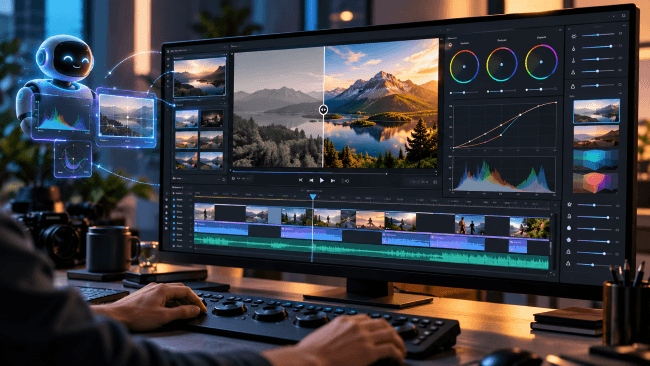
How Does AI Fix Video Color Problems?
AI can help correct video color problems by examining footage for issues with exposure, brightness, and color balance, then recommending or applying adjustments. Depending on the software and its features, AI-assisted tools can improve lighting consistency, reduce unwanted color tints, match colors between clips, and give an entire video a more unified appearance.
Conventional video color correction often involves reviewing each clip and manually adjusting its settings. AI speeds up parts of this process by recognizing visual patterns and making initial corrections based on editing instructions or reference images. It's one example of how AI-assisted video and content creation is changing production workflows, handling repetitive adjustments while leaving creative decisions in the editor's hands.
Some common video color issues that AI tools can help improve include:
- • Overexposed highlights where bright areas have lost visible detail
- • Underexposed scenes with shadows that appear too dark
- • Inconsistent colors between different cameras or shooting angles
- • Unnatural color tints caused by incorrect white balance
- • Washed-out footage that lacks contrast and visual depth
AI can make these corrections easier, but it can't make every creative decision. The final appearance depends on the editor's preferences, the condition of the original footage, lighting, camera settings, and the atmosphere the video needs to convey. Severely overexposed or underexposed footage may also contain lost details that software cannot fully recover.
Consider a travel video where warmer colors help convey a welcoming, relaxed atmosphere. A documentary covering the same location might benefit from more neutral tones that reflect the scene as it appeared. AI can suggest or apply either approach, but it's up to the editor to decide which treatment best fits the subject.
Understanding Color Correction and Creative Grading
Video color correction and color grading are closely connected, but they serve different purposes. Knowing where one ends and the other begins helps editors organize their work and avoid building a creative style on footage that still has exposure or color balance problems.
Color correction deals with the technical appearance of a video. The goal is to adjust exposure, correct white balance, improve contrast, and remove unwanted color casts so the footage looks natural and consistent. Color grading focuses on the creative side, using adjustments to color, saturation, contrast, and tone to establish a particular visual style or emotional effect.
The main difference is straightforward:
- • Color correction: Fixes technical color and exposure issues to produce accurate, balanced, and consistent footage.
- • Color grading: Adjusts the visual style to create a particular atmosphere, mood, or recognizable look.
For example, an interview recorded in poor lighting might have shadows that are too dark and skin tones that appear unnatural. The editor would first correct those problems to make the scene look balanced. Afterward, a subtle warmer grade could give the interview a more comfortable, personal atmosphere without sacrificing natural-looking colors.
A practical editing workflow keeps these steps separate. Correct the technical problems, compare clips to make sure they look consistent, and then develop the creative grade. Working in this order makes it easier to experiment with different visual styles or revise individual scenes without having to redo the original color corrections.
AI-Powered Workflows for Modern Video Editors
AI becomes especially useful when an editing project contains many repetitive adjustments. Editors working on interviews, podcasts, documentaries, marketing videos, and other long-form projects may need to organize and correct hundreds of clips before the creative edit is complete.
Invideo Editor brings together an editable timeline with AI editing agents that can take on repetitive work while keeping the project editable. Editors can provide direction, review the result, and continue refining changes themselves.
This matters because color work is rarely the only task in a video project. Editors may also need to organize footage, adjust pacing, clean audio, prepare graphics, and create different versions for websites or social platforms. Businesses using finished footage for promotion can also connect these production decisions with a broader video marketing strategy.
An AI-assisted workflow can help with tasks such as:
- • Reviewing footage before detailed editing
- • Applying a consistent color approach across related clips
- • Matching the look of reference footage
- • Repeating adjustments across similar shots
- • Preparing a first color pass before manual refinement
For teams producing content regularly, reducing repetitive steps can leave more time for storytelling, pacing, sound, graphics, and other creative decisions. The same principle is being applied to AI-assisted content creation, where automation is most useful when it supports rather than replaces human review.
How Can AI Color Grading Match a Visual Style?
AI color grading can match a visual style by analyzing a reference and identifying characteristics such as warmth, contrast, brightness, saturation, and overall color balance. It can then use those characteristics to guide adjustments to other footage. The result still depends heavily on the lighting, camera settings, dynamic range, and colors present in the original video.
Modern editors can provide a reference image and guide the AI toward a specific look. Instead of manually describing every individual adjustment, a creator can communicate the visual direction they want and then refine the result.
For example, an editor may request:
- • A warmer cinematic appearance
- • Softer contrast for a calm mood
- • Cooler tones for a dramatic scene
- • More balanced colors between different shots
Invideo Editor includes AI-assisted color workflows where creators can share a reference and tell the agent which shot should be adjusted. The AI editing agents interpret characteristics such as color, warmth, and contrast to guide the changes. Editors can then evaluate whether the result works with the rest of the sequence instead of treating the automated grade as final.

Professional Color Controls Inside AI Editors
AI assistance becomes more useful when it's combined with professional controls. Automated suggestions can provide a starting point, but editors still need precise ways to change individual shots, colors, highlights, shadows, and selected areas of a frame.
With an AI video color grading tool, creators can correct exposure, balance colors, and develop a particular look. They can describe a grade to AI agents in Invideo Editor or share a reference image, then fine-tune the result with color wheels, curves, and manual controls.
Available tools include color wheels, tone curves, hue and saturation curves, qualifiers, LUT controls, and waveform scopes for detailed adjustments. Editors can also target particular colors with hue, saturation, and luminance qualifiers rather than changing the entire frame.
Useful manual color controls include:
- • Color wheels: Adjust shadows, midtones, and highlights.
- • Curves: Control contrast and individual RGB channels.
- • LUTs: Apply a particular color treatment and adjust its strength.
- • Masks: Restrict changes to selected areas of the frame.
Invideo Editor also lets creators tell the agent which shot needs a change and request targeted corrections without regrading the entire sequence. Editors can keep the result, request another adjustment, or manually refine the grade using the available controls.
Color work is closely related to other visual production tasks. Our guide to AI image and graphic design tools covers additional ways AI can assist with image enhancement, visual creation, and digital design workflows.
Why AI Matters for Video Editing Teams
Professional editing isn't only about making creative choices. A finished project can involve large numbers of small operational tasks, and those tasks become more noticeable when a team is producing videos on a regular schedule.
Invideo Editor helps address this by allowing AI agents to handle parts of the editing process while creators maintain control over the timeline. The platform is designed for creators and editors working on projects such as interviews, podcasts, documentaries, multicamera videos, and commercial content.
For color work, this means editors can spend less time repeating basic corrections and more time evaluating whether shots work together visually. AI can accelerate the first pass, while human review remains important for details that depend on context, subject matter, and creative intent.
A Practical AI-Assisted Color Workflow
A straightforward workflow keeps automated adjustments reviewable instead of letting AI make a series of hidden decisions. Editors can use AI for speed, then evaluate each important change within the context of the complete sequence.
- • Upload the footage into the project.
- • Review the footage and identify shots that need correction.
- • Ask the AI agent for a specific adjustment or provide a visual reference.
- • Review the result on the timeline and compare it with surrounding shots.
- • Fine-tune colors manually when the automated result needs more precision.
The important part is that AI supports the editor instead of hiding the editing process. Changes remain available for review, giving creators an opportunity to compare, revise, or reject adjustments before finishing the project.
Better Consistency Across Video Projects
One of the harder parts of video production is maintaining visual consistency. A project may include footage recorded at different times, on different cameras, or under changing lighting conditions. Even small differences in white balance and exposure become noticeable when those shots appear next to one another.
Color grading and correction help bring these clips together by creating a more unified visual appearance. AI can help editors identify differences between shots and establish a more consistent starting point before detailed manual adjustments begin.
For example, a YouTube creator recording multiple episodes may want the same visual character across months of content. A marketing team may need several campaign videos to fit an established brand identity. Consistent color treatment can help those separate pieces feel as though they belong to the same production or campaign.
Invideo Editor supports this broader editing workflow by keeping color adjustments, timeline edits, and other production steps inside one project environment. Its timeline approach allows editors to continue refining the work rather than receiving a locked final output.
Once video production is complete, the content can become part of a wider digital strategy. Our guides on using AI in digital marketing and social media marketing explore ways businesses can plan, publish, and reuse digital content across campaigns.
Summary
Color problems can affect how viewers experience a video, but modern color grading and correction workflows make it easier to create balanced and consistent visuals. AI can help with repetitive adjustments, reference matching, and the early stages of color work, while professional controls remain important because every project has different footage and creative goals.
Invideo Editor combines AI assistance with an editable timeline, allowing creators to guide changes and refine the final result. The practical advantage isn't simply automation. It's the ability to use automation where it saves time while keeping the decisions that shape the finished video in the editor's hands.
Creators working with video, images, and other digital media can browse the RSH Web Services video collection and support and educational resources for additional information on websites, online content, marketing, and related technologies.
Frequently Asked Questions
Can AI color correction improve videos recorded on a smartphone?
Yes. AI video color correction can improve smartphone footage by adjusting brightness, white balance, contrast, and color saturation. This is particularly helpful when recording indoors, outdoors, or under mixed lighting conditions. However, compressed video and limited camera dynamic range can restrict the results. For creators producing mobile content, combining color correction with the techniques in our video marketing guide can help produce more consistent, professional-looking videos.
Why do skin tones sometimes look unnatural after AI color grading?
Unnatural skin tones often result from excessive saturation, incorrect white balance, or automated adjustments that affect the entire image. To correct this, reduce the intensity of the grade and use targeted color adjustments when available. Many video editors offer hue, saturation, and luminance controls that help isolate specific colors without changing the entire scene. Comparing the corrected footage with the original is particularly useful for maintaining natural-looking faces under different lighting conditions.
What is the difference between using a LUT and AI color grading?
A LUT, or lookup table, applies a predefined color transformation to video footage. AI color grading uses automated analysis or AI-assisted instructions to recommend or apply adjustments based on the desired appearance. LUTs are useful for repeatable visual treatments, while AI-assisted grading can help adapt adjustments to individual scenes. Some video editing programs support both methods, allowing creators to apply a LUT as a starting point and refine the results manually.
Can AI color correction fix grainy or noisy video footage?
Color correction alone does not remove digital noise, which often appears as grain or colored speckles in poorly lit footage. Increasing exposure during correction can actually make noise more noticeable. Video editors should use a dedicated noise reduction feature when available, preferably before applying strong color adjustments. Similar limitations affect still photographs, as explained in our guide to AI image enhancement and graphic design tools.
How can you prevent AI color grading from making footage look overprocessed?
Start with subtle corrections and avoid pushing saturation, contrast, or sharpening beyond what the footage needs. Check skin tones, highlights, and shadow details before accepting an automated grade. Many editing programs let you reduce the intensity of a color effect or fine-tune individual adjustments. For videos intended for social media marketing, a natural appearance often works better than dramatic effects that distract from the message.
Should you color grade video before or after adding visual effects and graphics?
Basic color correction is generally performed before adding complex visual effects so editors can work with balanced footage. Creative grading may happen later, once effects and composited elements are in place, to maintain a consistent appearance. Titles and graphics should also remain readable against the finished colors. Our article about AI content creation for websites explores related considerations for preparing digital content.
Does AI video color grading reduce video quality or resolution?
AI color grading does not automatically reduce video resolution, but aggressive adjustments and repeated lossy exports can affect image quality. Excessive contrast may crush shadow details, while extreme saturation can create unnatural colors or visible artifacts. For the best results, work from high-quality source footage, preserve the original files, and export using suitable resolution and bitrate settings. Always review the exported video rather than relying entirely on the editing preview.
Can beginners use AI color grading tools without professional editing experience?
Yes. Many AI video editing tools simplify color correction through automatic adjustments, preset styles, and guided editing controls. Beginners can improve exposure, balance colors, and create a more consistent appearance without learning every technical setting. However, reviewing the results and making small manual adjustments can produce better outcomes than relying entirely on automation. Creators exploring additional applications can also compare options in our AI tools and online marketing guide.
Are free AI video color grading tools good enough for professional results?
Free video editing tools can be suitable for basic color correction, especially when they include exposure adjustments, white balance controls, and color matching features. However, advanced grading controls, export quality, watermark restrictions, and AI usage limits vary by platform and subscription. Before choosing a tool, test it with your own footage and verify which features are included. Businesses comparing creative software can also explore our guide to evaluating AI for digital marketing.
How should you color grade videos for YouTube, websites, and social media?
Start with accurate exposure, consistent white balance, and natural colors. For standard SDR delivery, Rec. 709 is a common reference, although individual platforms and devices may display footage differently. Review the video on more than one screen and check how compression affects gradients and darker scenes. Keep important subjects clearly visible, especially on mobile devices. Our video resources provide additional examples of digital content and online media.
How can you tell whether an AI color grading tool is right for your workflow?
Choose an AI color grading tool based on the footage you edit, the level of manual control you need, supported video formats, export options, and overall cost. Test difficult examples, including mixed lighting, different camera sources, and scenes with challenging skin tones. Look for useful features such as automatic color matching, adjustable presets, selective color controls, and before-and-after previews. Compare the editing experience with your production requirements before committing to a paid plan.
Author Bio: Joel Heese
Joel is an expert in digital, technology, and business topics. He explains website security and other technical subjects in practical, understandable language.
We'd love to hear from you! Leave your experiences or questions in the comments section below.
Add Comment
This policy contains information about your privacy. By posting, you are declaring that you understand this policy:
- Your name, rating, website address, town, country, state and comment will be publicly displayed if entered.
- Aside from the data entered into these form fields, other stored data about your comment will include:
- Your IP address (not displayed)
- The time/date of your submission (displayed)
- Your email address will not be shared. It is collected for only two reasons:
- Administrative purposes, should a need to contact you arise.
- To inform you of new comments, should you subscribe to receive notifications.
- A cookie may be set on your computer. This is used to remember your inputs. It will expire by itself.
This policy is subject to change at any time and without notice.
These terms and conditions contain rules about posting comments. By submitting a comment, you agree with these rules:
- Although the administrator will attempt to moderate comments, not all comments can be moderated at all times.
- You acknowledge that all comments express the opinions of the original author and not those of the administrator.
- You will not post material which is knowingly false, obscene, hateful, threatening, harassing or invasive of privacy.
- The administrator has the right to edit, move or remove any comment for any reason and without notice.
Failure to comply with these rules may result in being banned from submitting further comments.
These terms and conditions are subject to change at any time and without notice.
Tweet Share Pin Email
 Long-Tail vs Short-Tail Keywords
 Use Your Small Business Website To Stand Out
 How do I Surf the Web Safely
 Expert Security Tips and Risks For Safe Public Wi-Fi Usage
Comments