
cPanel / Softaculous Tutorials & Guides
cPanel - Softaculous - Cloning
A Softaculous clone creates a separate copy of a supported installation at another domain, subdomain, or directory. Use the process here for testing or development, and verify the destination before opening it to visitors.
Cloning your website installation using Softaculous is an essential process for developers, site administrators, and web managers who want to test updates, build staging environments, or duplicate a site without interruption to live traffic. The Softaculous clone feature creates an identical copy of your application, including files and database, letting you experiment, optimize, or troubleshoot with confidence. This guide walks you through every step of the cloning management process so you can efficiently handle your installations.
What the Clone Feature Does
The clone feature duplicates a complete installation of a supported script from one location to another. Softaculous supports many popular scripts including WordPress, Joomla, Drupal, and more. You can only clone applications that were installed through Softaculous itself.
Why Clone Your Website?
- To build a staging site for testing updates before applying them live
- To create a development copy for design changes and feature testing
- To maintain backup access or test disaster recovery processes
Before You Begin
The source installation must be recognized by Softaculous, and the destination must be available. Back up the source before a consequential change and check whether the application needs URL-specific adjustments after cloning.
Step-by-Step Cloning Process
Softaculous simplifies cloning to just a few intuitive steps. Follow this structured process to ensure your clone is successful:
1. Login and Open Installations
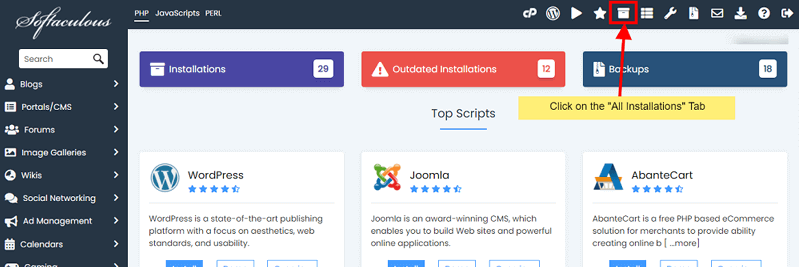
Access your web hosting control panel like cPanel, Plesk, or similar, then launch Softaculous from the Software section. Open the “All Installations” section to view apps you have installed with Softaculous.
2. Select Your Site
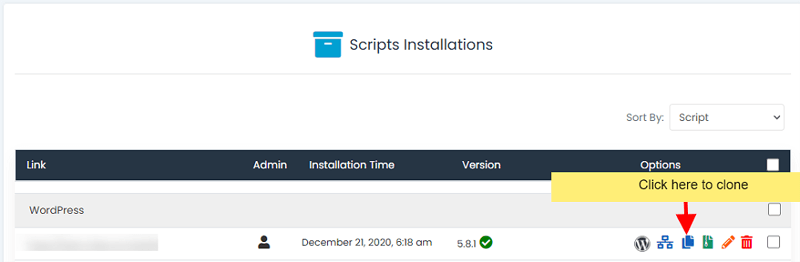
Next to the installation you want to duplicate, click the clone icon to start the process.
3. Configure Clone Settings
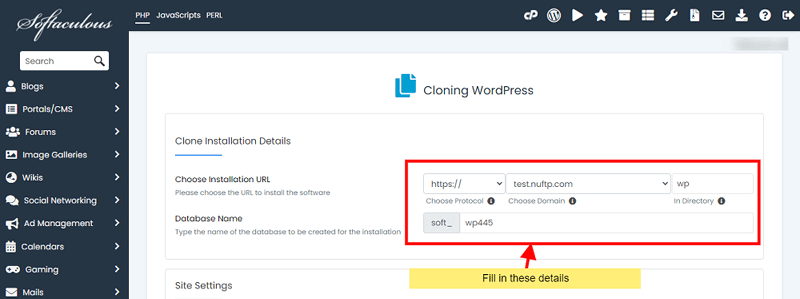
On the clone page, choose where the copy should go. Select the protocol (https or http), domain or subdomain, directory, and a name for the database if you want.
4. Execute the Clone
Click the “Clone Installation” button. Softaculous will begin generating the copy; the time varies based on your app size.
Once complete, you’ll see the clone listed in Softaculous installations and you may receive details via email if enabled.
Best Practices After Cloning
Once your installation is cloned, managing the copy properly matters. Confirm that the cloned version runs independently and does not conflict with the original site. Here are recommended tasks to help maintain a clean and functional cloned setup:
- Verify the cloned site’s URL loads correctly and functions as expected
- Check that database connections are separate to prevent data conflicts
- Update internal links and paths if the clone is on a new domain
- Disable search engine indexing if the clone is a staging environment to avoid SEO duplication
By following this comprehensive guide, you can confidently leverage Softaculous to clone installations for testing, development, and secure site management. The clone feature not only saves time but also reduces risk when making changes to live environments.
Frequently Asked Questions
What is the difference between cloning and staging?
Cloning creates a separate copy of an installation. Staging is a workflow intended for testing changes away from the live site and may provide additional deployment controls. See the create staging guide and the Push to Live guide. Use the page for the feature that appears for your installation, and verify the destination before testing.
Will a clone change the live site?
A correctly configured clone is created at a separate destination, so it should not replace the source installation. The destination can still affect visitors if its domain is public, and some applications need URL or configuration adjustments. Record the source and destination clearly, then open the copied site and verify its links before making changes.
Do I need a backup before cloning?
A backup is prudent before cloning a production installation, especially when the source is large or actively changing. Use the Softaculous backup guide. Cloning normally creates another copy, but storage limits, database work, and application-specific behavior can still cause an incomplete operation. Keep the source available and do not delete it until the copy has been checked.
Why is Clone unavailable?
Clone is not available for every script or every installation. Softaculous may also require the application to be recognized and the server administrator to permit the feature. Check the installation’s available icons in the All Installations list. If the option is absent, do not assume that a manual copy will behave identically.
What should I check on the cloned site?
Open the destination URL, sign in to its administration area, test representative pages, inspect media and links, and confirm that forms or integrations are not still pointed at production. For WordPress, pay particular attention to site URLs, scheduled tasks, email, analytics, and search-engine visibility in the WordPress Manager before exposing the copy publicly.
Can I use a clone as a permanent second site?
A clone can be a starting point for a separate site, but it may retain production settings, content, credentials, and third-party connections. Review those items before treating it as independent. Confirm the application license and hosting requirements, change what should differ, and keep the two sites’ maintenance responsibilities separate.
Does cloning copy email accounts?
Cloning an application generally concerns the supported installation files and database, not the entire hosting account. Mailboxes, DNS, server-level settings, and unrelated account data may remain outside the clone. Related mail settings in Softaculous are covered in Email Settings.
How do I remove a test clone safely?
Identify the test domain or directory and confirm it is not the live installation. Preserve any data you still need with a backup, then use the appropriate Softaculous or hosting control-panel removal method. Check DNS, cron jobs, remote integrations, and databases afterward so that deleting the copy does not leave unwanted account resources behind. Use Contact Us if you need account-level help.
Related Softaculous Tutorials and How To Guides
Wide range of key features for website management
Related Softaculous Tutorials and How To Guides
Wide range of key features for website management
Softaculous End-user Documentation
See our WHMCS cPanel Knowledgebase add-on module for Hosting Companies
Covering cPanel, WordPress, FTP and Softaculous
Related cPanel Tutorials and How To Guides
Simple to use hosting dashboard fix website issues yourself
Tweet Share Pin Email
Add Comment
This policy contains information about your privacy. By posting, you are declaring that you understand this policy:
- Your name, rating, website address, town, country, state and comment will be publicly displayed if entered.
- Aside from the data entered into these form fields, other stored data about your comment will include:
- Your IP address (not displayed)
- The time/date of your submission (displayed)
- Your email address will not be shared. It is collected for only two reasons:
- Administrative purposes, should a need to contact you arise.
- To inform you of new comments, should you subscribe to receive notifications.
- A cookie may be set on your computer. This is used to remember your inputs. It will expire by itself.
This policy is subject to change at any time and without notice.
These terms and conditions contain rules about posting comments. By submitting a comment, you agree with these rules:
- Although the administrator will attempt to moderate comments, not all comments can be moderated at all times.
- You acknowledge that all comments express the opinions of the original author and not those of the administrator.
- You will not post material which is knowingly false, obscene, hateful, threatening, harassing or invasive of privacy.
- The administrator has the right to edit, move or remove any comment for any reason and without notice.
Failure to comply with these rules may result in being banned from submitting further comments.
These terms and conditions are subject to change at any time and without notice.
 SEO Tips and Tricks, Search Engine Optimization
 Sitejet vs. WordPress
 Sitejet AI Website Builder
 What Are Website Backdoors: Prevention and Removal
Comments