
cPanel / Softaculous Tutorials & Guides
cPanel - Softaculous - Adding Domain
Use this guide when a domain, addon domain, or subdomain needs to appear as an installation destination in Softaculous. It explains the required domain and path details and how to confirm that the domain is ready for an application install.
Managing multiple websites becomes effortless when you configure domains properly in Softaculous. Adding a domain unlocks the ability to install hundreds of applications directly on that domain through the intuitive Softaculous interface. This is especially useful for users on remote setups, addon domains, or subdomains, where manual file placement and database creation can slow you down. By linking your domain with valid access credentials, Softaculous handles installations, backups, and updates reliably. Follow this guide to get your domains set up correctly and securely.
Why Add Domains and Key Benefits
Softaculous requires domains to be registered in its panel before any script can be deployed there. Once added, the domain appears in your installation dropdowns, streamlining the process for WordPress, Joomla, or any supported app. Proper configuration ensures accurate file placement, secure backups, and data isolation.
- Enables one-click installations on specific domains without manual uploads.
- Supports main domains, addons, and subdomains with custom paths.
- Provides dedicated backup and data directories for enhanced organization and security.
- Validates FTP connections upfront to catch issues early.
- Integrates smoothly with future backups, clones, or imports.
- Keeps non-web-accessible paths private to reduce vulnerability risks.
Before You Begin
The domain must already be configured in the hosting account. Have the correct document root and, when applicable, FTP credentials available before adding it in Softaculous.
Step-by-Step Process to Add a Domain
Log into your cPanel
Click the Softaculous App Installer link in the Software section.
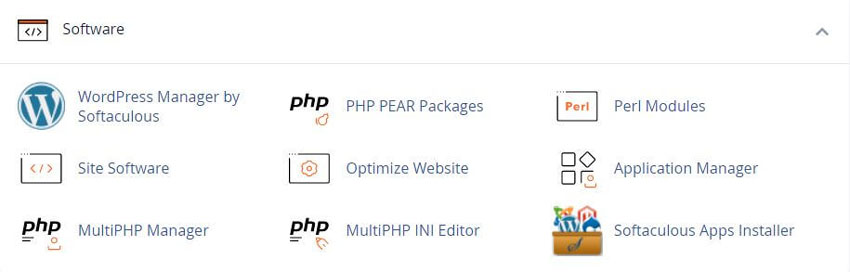
Begin by logging into your Softaculous Remote enduser panel at the provided URL. If you're new, register an account first. From the header navigation, select Manage Domains to view your current list or start fresh.
Click the Add a Domain button to open the configuration form. Enter your details carefully:
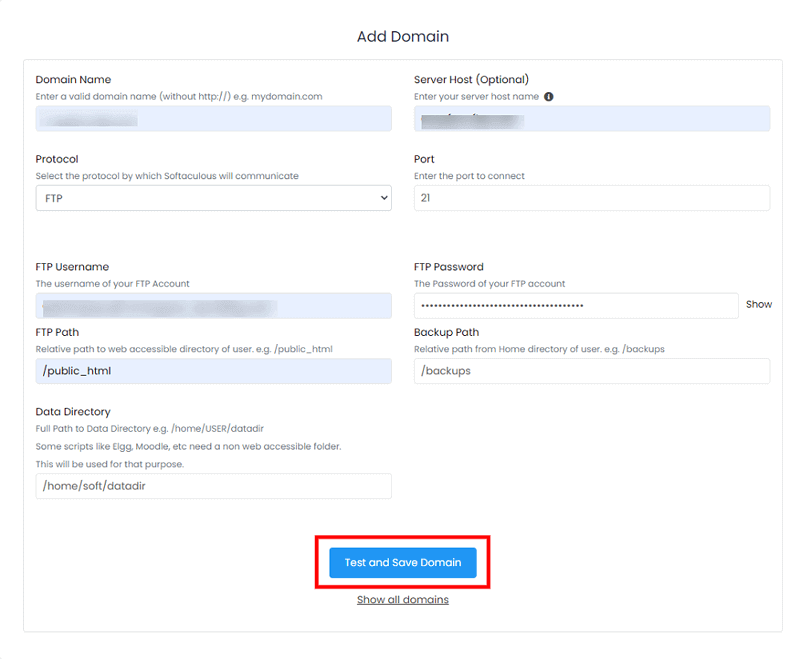
- Domain Name: Input the exact domain (example.com) without http or https prefixes.
- Server Host: Optional hostname like ftp.example.com; leave blank if it matches the domain.
- Protocol: Usually FTP; select based on your server's supported options.
- Port: Default is 21 for FTP; adjust if using a custom port.
- FTP Username: Your server or cPanel username for authentication.
- FTP Password: Corresponding password for secure access.
- FTP Path: Relative path to the web root, such as /public_html, /htdocs, or / for root-level access; critical for addons or subdomains.
- Backup Path: Relative directory for storing backups (e.g., /backups); ensure it's not publicly accessible.
- Data Directory: Full server path for script data storage (e.g., /home/user/datadir/); keep it outside web-accessible areas for privacy.
Once filled, hit Test and Save Domain. Softaculous verifies the FTP connection and path accuracy. If successful, the domain joins your Manage Domains list, ready for installations. A failure message highlights issues like wrong credentials or invalid paths for quick fixes.
Best Practices and Security Tips
Always double-check paths to avoid connection errors. For addon domains or subdomains, specify the exact relative path to prevent misplacement. Never use web-accessible directories for backups or data to block unauthorized access. Test the setup by attempting a small script install afterward. Regularly review your domain list for updates if server details change.
Adding domains in Softaculous transforms how you deploy and manage web applications. With accurate FTP details and secure configurations, you gain full control over installations across your hosting environment efficiently and safely.
Frequently Asked Questions
What access do I need?
You generally need access to the hosting control panel and the Softaculous Enduser panel. Adding a domain can also require FTP credentials for the document root. See the FTP tutorial index if you need to confirm those details. If a control is missing, check the account permissions and server policy before assuming the interface is malfunctioning.
Why is the option not visible?
Softaculous shows tools according to the script, installation state, server configuration, and administrator permissions. Manage Domains may be limited on some accounts. Confirm you opened Softaculous from the Apps Installer and consult the current Softaculous documentation before trying an unrelated workaround.
How can I confirm the task completed?
Review the success message after Test and Save Domain. The domain should then appear as an install destination. After a later script install, confirm the result in the All Installations list. Background jobs can be checked in the Softaculous task list.
What should I do after an error?
Record the exact error, operation, domain, and time. Check the destination path, FTP credentials, storage, and permissions. Related destination setup is covered in Add Backup Location. Avoid repeating a destructive action until you know whether the first attempt finished. Contact the hosting provider or Softaculous support when the message does not identify a safe correction.
Can a cPanel user perform every action?
No. Access depends on the hosting plan, server policy, Softaculous permissions, and the application’s own user roles. Adding a domain still requires the domain to exist on the account first. Related tasks are listed in the Softaculous tutorial index.
Do I need a backup first?
Adding a domain record does not replace files on a live site. Create a current backup before a later task that changes files, database content, domains, themes, plugins, settings, or installation records. Use the Softaculous backup guide. A Softaculous installation backup is not automatically a full account backup.
Where can I learn more?
Use the official Softaculous Enduser Documentation linked on this page for current menu names and feature availability. After the domain is listed, install a script with the Installing A Script guide. For WordPress behavior, use the WordPress tutorial index.
Can RSH Web Services perform the task for me?
The tutorial explains a customer-managed Softaculous workflow. Whether assistance is available depends on the service and support arrangement associated with the hosting account. Use Contact Us before sharing credentials or requesting a change, and identify the exact domain, installation, and operation that needs attention.
Related Softaculous Tutorials and How To Guides
Wide range of key features for website management
Softaculous End-user Documentation
See our WHMCS cPanel Knowledgebase add-on module for Hosting Companies
Covering cPanel, WordPress, FTP and Softaculous
Related cPanel Tutorials and How To Guides
Wide range of key features crucial for website management
Tweet Share Pin Email
Add Comment
This policy contains information about your privacy. By posting, you are declaring that you understand this policy:
- Your name, rating, website address, town, country, state and comment will be publicly displayed if entered.
- Aside from the data entered into these form fields, other stored data about your comment will include:
- Your IP address (not displayed)
- The time/date of your submission (displayed)
- Your email address will not be shared. It is collected for only two reasons:
- Administrative purposes, should a need to contact you arise.
- To inform you of new comments, should you subscribe to receive notifications.
- A cookie may be set on your computer. This is used to remember your inputs. It will expire by itself.
This policy is subject to change at any time and without notice.
These terms and conditions contain rules about posting comments. By submitting a comment, you agree with these rules:
- Although the administrator will attempt to moderate comments, not all comments can be moderated at all times.
- You acknowledge that all comments express the opinions of the original author and not those of the administrator.
- You will not post material which is knowingly false, obscene, hateful, threatening, harassing or invasive of privacy.
- The administrator has the right to edit, move or remove any comment for any reason and without notice.
Failure to comply with these rules may result in being banned from submitting further comments.
These terms and conditions are subject to change at any time and without notice.
 Online Privacy and Security, Protecting Your Privacy
 Will You Lose Business Without a Website
 The Importance of a Mobile-Friendly, Responsive Website
 Most Important Factors When Choosing a Hosting Company
Comments