
cPanel / Softaculous Tutorials & Guides
cPanel - Softaculous - Manage Sets
Manage Sets groups selected WordPress plugins and themes so the collection can be reused during supported Softaculous workflows. This guide covers creating and managing a set while keeping in mind that plugin and theme compatibility still needs to be tested on each site.
Managing multiple WordPress plugins and themes across several sites can be time consuming. Softaculous introduces a powerful tool called Manage Sets that lets you bundle selected plugins and themes into reusable groups. These sets speed up installations by applying collections of tools to new or existing WordPress sites with a single action, saving time and eliminating repetitive tasks. This guide breaks down the full set creation and management process so you can take control of your WordPress deployments.
What Are WordPress Manage Sets?
A WordPress Manage Set is a curated bundle of plugins and themes that you assemble once and then install on any WordPress installation through Softaculous. Instead of installing each plugin and theme individually, a set lets you apply a preferred configuration in one step. This feature is especially useful for developers, agencies, and power users who standardize setups across multiple sites.
Before You Begin
You need access to Softaculous and a WordPress setup suitable for testing. Review each plugin and theme independently; a set does not guarantee compatibility, licensing, or ongoing maintenance.
How to Create a Manage Set
The process to craft your own set is simple and supported directly within the Softaculous Enduser panel. Below is the complete method to build a set from scratch.
1. Open Softaculous in cPanel
Log into your cPanel
Click the Softaculous App Installer link in the Software section.
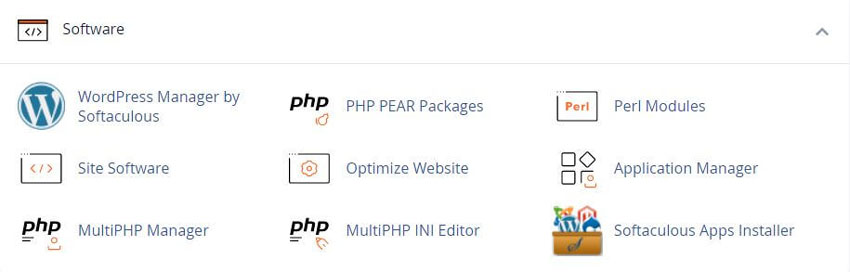
2. Navigate to Manage Plugin/Theme
Find the WordPress overview and choose the Manage Plugin/Theme option where set tools are located.
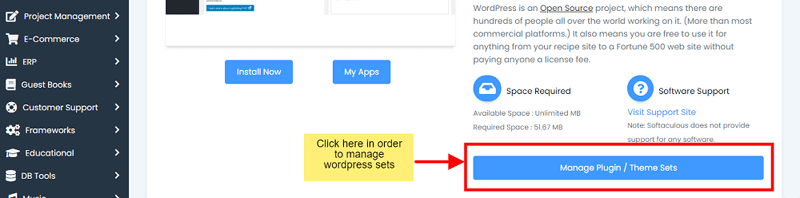
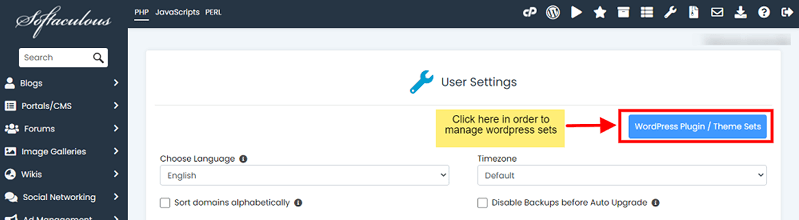
3. Create New Set
Click Create Sets, enter a name, and confirm to make a new blank set. The set will then appear in your list of available sets.
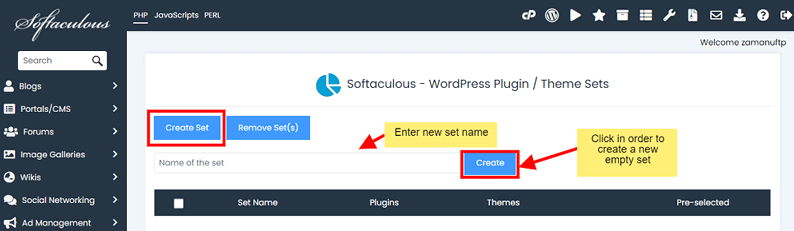
4. Add Plugins and Themes
Use Add Plugins and Add Themes buttons to search and include desired tools in your set. Each selection is added immediately to your group.
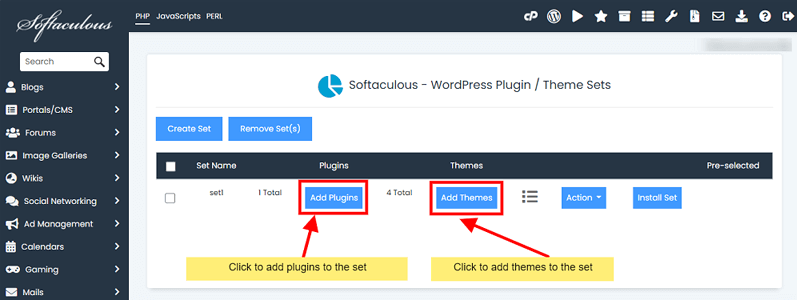
Managing Your Sets
Once created, sets can be edited to maintain relevance or cleaned up when they are obsolete. You can also deploy a set to multiple sites quickly and remove elements if needs change.
View Set Contents
Click the view icon to see the plugins and themes currently stored in any set. This helps confirm contents before installation.
Remove Items
Using the Actions button, you can remove selected plugins or themes from a set to keep it updated and relevant.
Install Sets on Sites
Choose Install Set and select one or more WordPress installations to apply all bundled items in one action. The set deploys plugins and themes automatically.
Clean Up Sets
Delete older sets that are no longer needed to maintain an organized list of current configuration groups.
Why Use Manage Sets
Manage Sets improves workflow, especially when creating multiple sites with similar tool stacks. By saving time, reducing repetitive steps, and ensuring consistency across installations, sets become invaluable in professional WordPress management. Using sets also helps enforce standards across teams or client projects, making site rollouts more predictable and reliable.
Frequently Asked Questions
Does WordPress Manager replace WordPress admin?
No. WordPress Manager exposes selected management actions from the hosting panel, while WordPress admin remains the application’s primary control area. See the WordPress Manager guide for panel-side tools. Use the manager for the actions it explicitly provides and use the WordPress tutorial index for settings or workflows it does not expose.
Why is my WordPress site not listed?
Softaculous must recognize the installation before WordPress Manager can manage it. Check the domain and directory, confirm that the files and database are present, and use the import WordPress workflow when appropriate. Confirm the record in the All Installations list. Do not register a second installation blindly, because duplicate records can make later updates or backups harder to identify.
Can every user manage WordPress installations?
No. Access depends on the cPanel account, server policy, and the permissions required by the particular operation. Inside WordPress, Administrator-level capabilities may be needed for users, plugins, themes, or settings. If an option is missing, check the account role and server configuration rather than assuming the feature is broken.
Should I back up before updating?
Yes, especially before a core, plugin, theme, or configuration change that can affect a live site. A backup gives you a recovery point, but it should be stored where you can access it and tested for restoration when practical. Use the Softaculous backup guide and test larger changes with the staging guide when the installation supports it.
What if a plugin or theme update causes an error?
First review the task result and determine whether the update completed. Check the Softaculous task list. If the site is unavailable, preserve the current state and use the restore a backup guide rather than repeating the update. Check the developer’s compatibility notes, PHP and WordPress requirements, and error logs, then contact the hosting provider or developer if the cause remains unclear.
Are Manage Sets automatically safe?
No. A set applies a selected collection, but plugins and themes can conflict with one another, require licenses, or stop receiving maintenance. Test the set on a nonproduction installation, confirm each item’s source and license, and review the result after installation. Keep the set current as the underlying software changes.
Why do theme options differ?
WordPress interfaces depend on the active theme and editor model. Block themes can expose Site Editor controls, while classic themes may use the Customizer, menus, and widgets. Softaculous or WordPress Manager cannot make theme-specific controls universal. Theme install steps are also in the install theme guide.
How can I confirm a manager action worked?
Return to the installation list or the relevant WordPress screen and check the reported version, setting, plugin, theme, or user. Then test the public site and administration area. For changes that affect URLs, visibility, scheduled tasks, or debugging, verify those behaviors directly and record the previous setting before making another change.
Related Softaculous Tutorials and How To Guides
Wide range of key features for website management
Related Softaculous Tutorials and How To Guides
Wide range of key features for website management
Softaculous End-user Documentation
See our WHMCS cPanel Knowledgebase add-on module for Hosting Companies
Covering cPanel, WordPress, FTP and Softaculous
Helpful cPanel Tutorials and How-To Guides
cPanel manage every element of your web hosting account
Tweet Share Pin Email
Add Comment
This policy contains information about your privacy. By posting, you are declaring that you understand this policy:
- Your name, rating, website address, town, country, state and comment will be publicly displayed if entered.
- Aside from the data entered into these form fields, other stored data about your comment will include:
- Your IP address (not displayed)
- The time/date of your submission (displayed)
- Your email address will not be shared. It is collected for only two reasons:
- Administrative purposes, should a need to contact you arise.
- To inform you of new comments, should you subscribe to receive notifications.
- A cookie may be set on your computer. This is used to remember your inputs. It will expire by itself.
This policy is subject to change at any time and without notice.
These terms and conditions contain rules about posting comments. By submitting a comment, you agree with these rules:
- Although the administrator will attempt to moderate comments, not all comments can be moderated at all times.
- You acknowledge that all comments express the opinions of the original author and not those of the administrator.
- You will not post material which is knowingly false, obscene, hateful, threatening, harassing or invasive of privacy.
- The administrator has the right to edit, move or remove any comment for any reason and without notice.
Failure to comply with these rules may result in being banned from submitting further comments.
These terms and conditions are subject to change at any time and without notice.
 What is Java - Do I Need it?
 What Is Joomla: With Features, Templates, and Extensions
 The Best PHP Resources and Tools
 Protecting Your Devices from Malware and Phishing Attacks
Comments