
cPanel / Softaculous Tutorials & Guides
cPanel - Softaculous - WordPress Manager
Softaculous WordPress Manager centralizes supported management actions for WordPress installations recognized by Softaculous. The guide covers access, installation, updates, plugins, themes, users, and settings while distinguishing available controls from WordPress admin features.
WordPress Manager is a utility to Manage all your WordPress installation in one place.
WordPress Manager allows you to update several settings for your WordPress installation without even having to login to WordPress admin panel.
Before You Begin
You need cPanel access and a WordPress installation that Softaculous can manage. Some controls require appropriate WordPress permissions, and the exact options may vary with the server and software versions.
Open Softaculous
Log into your cPanel
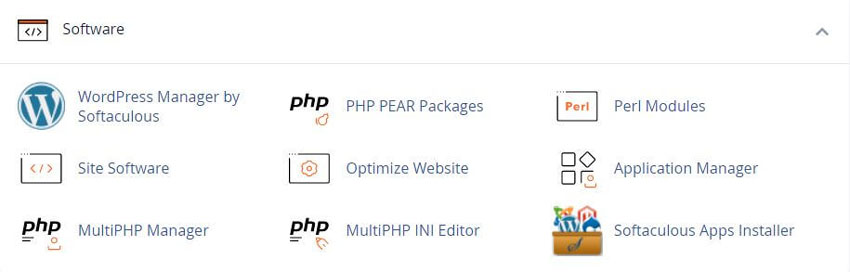
Click the Softaculous App Installer link in the Software section.
Accessing WordPress Manager
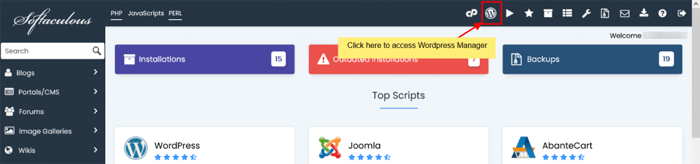
In order to access WordPress Manager you can click on the “WordPress” icon in the upper right corner of your Softaculous enduser panel as shown in the below screenshot.
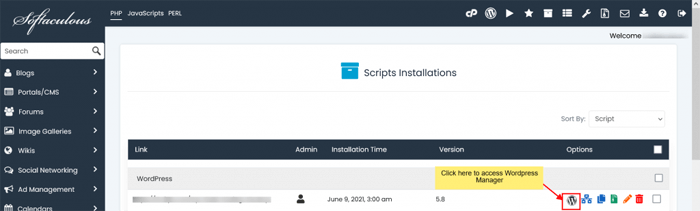
OR you can access WordPress Manager by clicking the “WordPress” icon next to the WordPress installation you would like to manage from All Installations page as shown in the below screenshot.
Install WordPress
- Click on the Install Button.
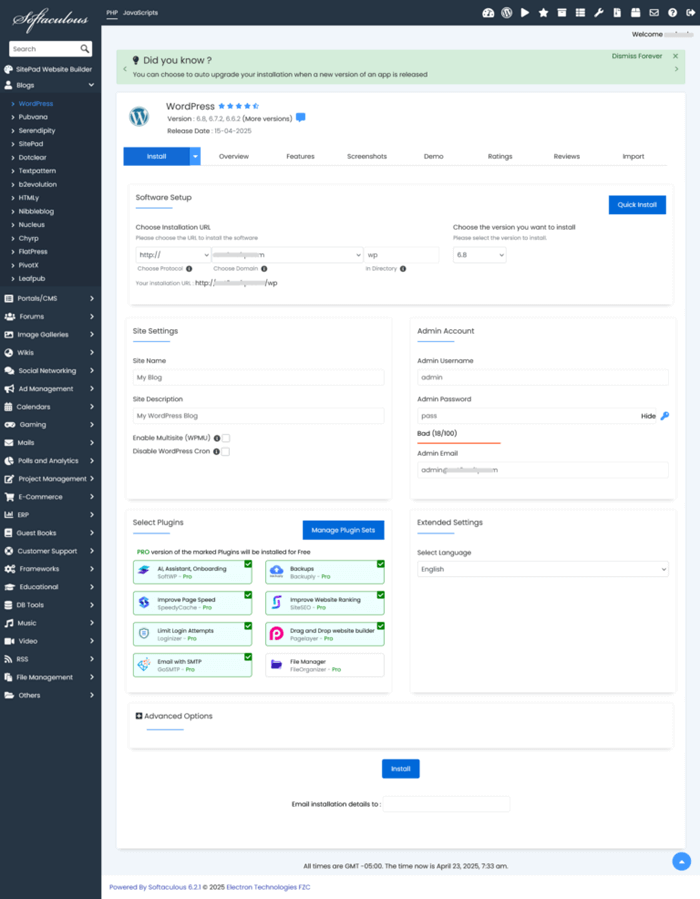
- Fill in the details like protocol, domain name, directory, database name, admin login details, language, etc on the form you will see, like the one below.
- You can also select the plugins you would like to install.
- As soon as the installation is complete Softaculous will provide links to your installation.
- Click on the links provided and this should redirect you directly to the site page or the admin homepage whichever you choose.
Other Options
Auto Login to WordPress admin panel
Click on the “Login” button next to your site url to automatically login to your WordPress panel as admin user without having to enter the password.
Upgrade Installation
If your installation has an update available you will see the “Upgrade Now” button next to the version number. Just hit that button and it will take you to the upgrade page.
Auto Upgrade Core Settings
Choose your auto upgrade settings for WordPress core. You can choose from the following options and Softaculous will perform the updates accordingly:
- Do not Auto Upgrade
- Upgrade to Minor versions only (i.e. 5.5.1 will be upgraded to 5.5.x and not 5.6.x)
- Upgrade to latest version available Major as well as Minor (i.e. 5.5.1 will be upgraded to 5.5.x until there is a new major version available and 5.6.x when available)
Just choose your preference and it will be automatically saved and you will see a success message.
Auto Upgrade Plugins/Themes Settings
Choose to enable/disable Auto Upgrade for Plugins or Themes. If you enable Auto Upgrade plugins or themes, updates will be checked once every 24 hours and will be upgraded. Just tap on Enable/Disable button and it will save the preference and you will see the success message.
Enable/Disable Search Engine Visibility
The Search Engine Visibility setting in WordPress Reading options can also be customized. If you are cloning your live site to a dev site or your website is still not complete and you do not want Search Engines to index your site you can set this setting as disabled. If you want Search Engines to index your site you can enable this setting. Just tap on Enable/Disable button and it will save the preference and you will see the success message.
Enable/Disable WordPress CRON
By default WordPress has a CRON job enabled which performs various tasks on your site. Sometimes with huge sites this can consume your server resources. If you would like to enable/disable this wp-cron setting you can tap on Enable/Disable button and it will save the preference and you will see the success message.
Enable/Disable WordPress Debug Mode
WordPress debug mode (disabled by default) is very useful if you run into any issues on your site and want to know the reason. You can enable/disable the debug mode from Softaculous WordPress Manager. Just tap on Enable/Disable button and it will save the preference and you will see the success message.
Note: It is not recommended to leave debugging mode enabled on your production site. On production site disable debug mode once you have finished debugging.
Change Website URL
The Site URL for your website can be changed from Softaculous WordPress Manager. If you have changed the site URL from your WordPress admin panel to something invalid and you are locked out from your panel you can revert it from Softaculous WordPress Manager. Change the “Website URL” value in the field and hit the “Save Site Info” button. The URL will be changed in your WordPress database as well.
Change Site Name
The Site Name for your website can be changed from Softaculous WordPress Manager. Change the “Site Name” value in the field and hit the “Save Site Info” button. The Site Name will be changed in your WordPress database as well.
Change Password
Forgot Password for your account on your WordPress site? Or want to reset the password for a user?
Change the Password for any user account on your WordPress site from the Softaculous WordPress Manager page.
Go to Manage Users Utility
2. Select the Username and enter the New Password you want to use.
Plugins, Themes, and Users
Manage Plugins
The “Installed” section shows you the list of all the installed plugins in your WordPress installation. You can Activate/De-activate and Delete plugins accordingly.
Add Plugins
The “Add Plugins” section allows you to search for and install any plugin from wordpress.org . The selected plugins are automatically activated upon installation.
Upload Plugin
The “Upload Plugin” section allows you to install a plugin by uploading it’s zip file.
Manage Themes
The “Installed” section shows you the list of all the installed themes in your WordPress installation. You can Activate/De-activate and Delete themes accordingly.
Add Themes
The “Add Themes” section allows you to search for and install any theme from wordpress.org. The selected themes are automatically activated and replace the previously activated theme upon installation.
Upload Theme
The “Upload Theme” section allows you to install a theme by uploading it’s zip file.
Add User
Do you want to add new users like Editors, Authors to your blog?
WordPress Manager by Softaculous comes with an in-build tool to Add WordPress users with different roles.
- Go to Manage Users Utility
- Click on Add user tab
- Select the User role you want to add and fill in the required details
- Click on Add user. That’s it the new user will be added in the WordPress.
More Features will be added to WordPress Manager in the upcoming versions.
Frequently Asked Questions
Does WordPress Manager replace WordPress admin?
No. WordPress Manager exposes selected management actions from the hosting panel, while WordPress admin remains the application’s primary control area. The available Softaculous controls vary by installation and server configuration. Use the manager for the actions it explicitly provides and use the WordPress tutorial index for settings or workflows it does not expose.
Why is my WordPress site not listed?
Softaculous must recognize the installation before WordPress Manager can manage it. Check the domain and directory, confirm that the files and database are present, and use the import WordPress workflow when appropriate. Confirm the record in the All Installations list. Do not register a second installation blindly, because duplicate records can make later updates or backups harder to identify.
Can every user manage WordPress installations?
No. Access depends on the cPanel account, server policy, and the permissions required by the particular operation. Inside WordPress, Administrator-level capabilities may be needed for users, plugins, themes, or settings. If an option is missing, check the account role and server configuration rather than assuming the feature is broken.
Should I back up before updating?
Yes, especially before a core, plugin, theme, or configuration change that can affect a live site. A backup gives you a recovery point, but it should be stored where you can access it and tested for restoration when practical. Use the Softaculous backup guide and test larger changes with the staging guide when the installation supports it.
What if a plugin or theme update causes an error?
First review the task result and determine whether the update completed. Check the Softaculous task list. If the site is unavailable, preserve the current state and use the restore a backup guide rather than repeating the update. Check the developer’s compatibility notes, PHP and WordPress requirements, and error logs, then contact the hosting provider or developer if the cause remains unclear.
Are Manage Sets automatically safe?
No. A set applies a selected collection, but plugins and themes can conflict with one another, require licenses, or stop receiving maintenance. Test the set on a nonproduction installation, confirm each item’s source and license, and review the result after installation. See Manage WordPress Sets before applying a bundle.
Why do theme options differ?
WordPress interfaces depend on the active theme and editor model. Block themes can expose Site Editor controls, while classic themes may use the Customizer, menus, and widgets. Softaculous or WordPress Manager cannot make theme-specific controls universal. Theme install steps are also in the install theme guide.
How can I confirm a manager action worked?
Return to the installation list or the relevant WordPress screen and check the reported version, setting, plugin, theme, or user. Then test the public site and administration area. For changes that affect URLs, visibility, scheduled tasks, or debugging, verify those behaviors directly and record the previous setting before making another change.
Related Softaculous Tutorials and How To Guides
Wide range of key features for website management
Softaculous End-user Documentation
See our WHMCS cPanel Knowledgebase add-on module for Hosting Companies
Covering cPanel, WordPress, FTP and Softaculous
Related cPanel Tutorials and How To Guides
A beginners guide to cPanel Step by step tutorials
Tweet Share Pin Email
Add Comment
This policy contains information about your privacy. By posting, you are declaring that you understand this policy:
- Your name, rating, website address, town, country, state and comment will be publicly displayed if entered.
- Aside from the data entered into these form fields, other stored data about your comment will include:
- Your IP address (not displayed)
- The time/date of your submission (displayed)
- Your email address will not be shared. It is collected for only two reasons:
- Administrative purposes, should a need to contact you arise.
- To inform you of new comments, should you subscribe to receive notifications.
- A cookie may be set on your computer. This is used to remember your inputs. It will expire by itself.
This policy is subject to change at any time and without notice.
These terms and conditions contain rules about posting comments. By submitting a comment, you agree with these rules:
- Although the administrator will attempt to moderate comments, not all comments can be moderated at all times.
- You acknowledge that all comments express the opinions of the original author and not those of the administrator.
- You will not post material which is knowingly false, obscene, hateful, threatening, harassing or invasive of privacy.
- The administrator has the right to edit, move or remove any comment for any reason and without notice.
Failure to comply with these rules may result in being banned from submitting further comments.
These terms and conditions are subject to change at any time and without notice.
 Essential Image WordPress Plugins
 Proper use of Categories and Tags with WordPress
 Why You Need Secure SSL WordPress Hosting
 Essential Slider WordPress Plugins
Comments