
The WordPress Dashboard
If you’re new to WordPress, the first thing you’ll want to master is the WordPress Dashboard. This Dashboard allows you to control all of the details of managing your WordPress website. Once you become familiar with the WordPress Dashboard, you’ll realize it’s really easy to use and navigate.
This powerful interface is where all the magic happens, where you create content, manage your site, and customize its appearance. In this comprehensive guide, we’ll take a deep dive into the WordPress Dashboard, exploring its features and functionalities while providing you with essential tips and tutorials for beginners.
What is the WordPress Dashboard?
The WordPress Dashboard is the administrative area of your WordPress website. It provides a user-friendly interface that allows you to manage your site’s content, settings, and overall appearance. When you log into your WordPress account, the first thing you see is the Dashboard, which serves as your control center.
Key Features of the WordPress Dashboard
- • Admin Menu: This is located on the left side of the screen and contains links to various sections such as Posts, Pages, Media, and Settings.
- • Admin Toolbar: This toolbar is located at the top of the page and provides quick access to essential features like adding new posts or accessing your site.
- • Dashboard Widgets: These provide a summary of your site's activity, including recent posts, comments, and statistics.
- • Quick Access Links: Quickly create new content or manage existing content from various sections.
- • Content Creation: The Dashboard allows you to create and publish posts and pages easily.
- • Site Management: You can manage user accounts, site settings, and more from this central location.
- • Customization: Customize the look and feel of your site using themes and plugins directly from the Dashboard.
- • Performance Tracking: Keep track of comments, site statistics, and updates.
Logging into the WordPress Dashboard
Before you can explore the WordPress Dashboard, you need to log in. Here’s a step-by-step guide:
To log in, navigate to your website’s login URL. This typically looks like this:
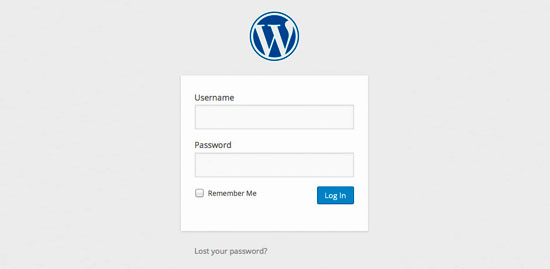
You’ll see a login form prompting you to enter your username and password. Make sure you use the credentials you set up during installation. After entering your username and password, click the “Log In” button. If your details are correct, you will be redirected to the WordPress Dashboard.
The Dashboard Home Screen
Once you’re logged in, take a moment to familiarize yourself with the Dashboard layout.

The Admin Menu
The WordPress Admin Menu is your gateway to mastering your website's functionality and design. This intuitive menu is packed with essential tools that empower you to manage posts, pages, media, and more. With quick access to settings, themes, and plugins, the Admin Menu streamlines your workflow, allowing you to focus on creating engaging content. From customizing your site's appearance to optimizing for SEO, every element of the Admin Menu is designed to enhance your user experience. Understanding the nuances of the WordPress Admin Menu is crucial for unleashing your site's full potential. This contains various options listed below:
- • Posts: Manage your blog posts, including creating, editing, and categorizing them.
- • Pages: Create and manage static web pages.
- • Media: Upload and manage images, videos, and media files.
- • Comments: Moderate user comments left on your posts.
- • Appearance: Customize your website themes and layout.
- • Plugins: Install and manage WP plugins to enhance your site’s functionality.
- • Users: Manage your user accounts and permissions.
- • Settings: Adjust various website settings.
The Admin Toolbar
Located at the top, the Admin Toolbar provides quick access to common features, such as:
- • My Site: View your site and switch between sites in a multisite installation.
- • New: Quickly add new posts, pages, or media.
- • Comments: Access your comments section for moderation.
- • Updates: Check for available updates for your WordPress core, themes, and plugins.
Dashboard Widgets
The main section of the Dashboard is filled with widgets that provide insights and functionality:
- • At a Glance: This widget provides a summary of the number of posts, pages, and comments on your site. Each of these content types are displayed in the form of a link. When clicked it will direct you to the specific area to manage that content
- • Activity: The Activity widget shows upcoming scheduled posts, recently published posts, and the most recent comments on your posts. Which you can moderate
- • Quick Draft: The QuickDraft widget allows you to write a new draft. A post title, Upload or insert media, Post content, add tags, click the Publish button or click the Save Draft button.
- • WordPress Events and News: This events and news widget lists upcoming local events and the latest news from the official WordPress site. Find out an upcoming event near you, or, what WordPress developers have been up to. Keep up with the latest WordPress related news. In addition to software developments. Version announcements and security notices. News about the WordPress community in is periodically posted.
- • Recent Comments: This shows you just that, Recent Comments. Here you can quickly approve or un-approve comments, reply, edit, mark as spam or delete them.
- • Plugins: You will find information on the most popular newest and recently updated plugins from the WordPress.org Plugins Directory.
- • Quick Press: QuickPress will allow you to publish or save a draft of a post which is great for quickly publishing content. Although you will not have all of the formatting options like you do in the WordPress post editor.
Customizing Your Site
The WordPress Dashboard offers numerous customization options. such as the WordPress Dashboard Home screen, the other major component of the WordPress Dashboard is the "left-hand navigation menu". This navigation menu provides links to all of the WordPress administration screens for posts, the media library, pages, comments, appearance options, plugins, users, tools and settings.
If you ever find yourself needing help, just click the "Help" tab in the upper corner. Click the arrow to expand and you’ll now see helpful information that walks through the overview, navigation, layout and content of the WordPress Dashboard. You will also find a link to the WordPress.org Codex documentation on the Dashboard and to the support forums.
Changing the default WordPress Theme
Changing the default WordPress theme is a straightforward process that can significantly enhance the look of your website. First, log in to your WordPress dashboard and navigate to the "Appearance" section, then click on "Themes." Here, you’ll see the default theme along with other installed options. To change it, simply hover over your desired theme and click the “Activate” button.
If you want to explore more themes, click “Add New” to browse the WordPress theme repository, Over 12,000 free themes to customize your WordPress site, where you can filter by features or search for specific styles. Once you've found a theme you love, install and activate it, then customize it under the "Customize" option to adjust colors, layouts, and more. With just a few clicks, you’ll give your site a fresh new look that reflects your unique brand
Installing Plugins
To extend your site’s functionality, navigate to Plugins > Add New. Search for plugins that fit your needs, install them, and activate them. Browse over 59,000 free plugins and find information on the most popular newest and recently updated plugins from the WordPress.org Plugins Directory.
WordPress Dashboard Plugins
Announce from the Dashboard
Announcement to users on the Dashboard. This plugin to show announce for per user roles.
ExactMetrics
Connects Google Analytics with your WordPress site. Displays stats to help you understand your users and site content on a whole new level
Ultimate Dashboard
Allows you to create a custom WordPress dashboard for you and your clients. Replace the default WordPress dashboard widgets with your own and give the WordPress dashboard a more meaningful use.
Download Plugins and Themes from Dashboard
Download installed plugins and themes ZIP files directly from your admin dashboard without using FTP.
WP Dashboard Notes
Working with multiple persons on a website? Want to make notes? You can do just that with WP Dashboard Notes.
Remove Dashboard Access
Allows you to disable Dashboard access for users of a specific role or capability. Disallowed users are redirected to a chosen URL.
Dark Mode for WP Dashboard
Makes your WordPress admin dashboard in dark mode.
Dashboard Widgets Suite
Add new widgets to your WordPress Dashboard. Streamline your workflow and optimize productivity. Dashboard Widgets Suite provides awesome widgets that you can add to your Dashboard
MainWP Dashboard
Managing multiple WordPress sites can be a time-consuming and frustrating task. The MainWP Dashboard empowers you to take back your time by allowing you to efficiently manage and secure all your WordPress sites from your own centralized Dashboard.
Analytify
Google Analytics Dashboard Plugin for WordPress – by Analytify makes Google Analytics simple for everyone using WordPress. We know how important it is to keep track of website analytics.
UpdraftCentral Dashboard
UpdraftCentral is a powerful remote control dashboard for WordPress that allows you to manage your WordPress sites from one central location. You can centrally manage backups, updates and more, accessing each site quickly and efficiently.
AGCA – Custom Dashboard & Login Page
With this plugin you can easily customize WordPress admin panel, login page, admin menu, admin bar etc. in tiny details.
WordPress Dashboard Best Practices
The WordPress Dashboard controls your website’s content, users, appearance, plugins, updates, comments, media, and settings. Keeping the admin area organized and using each feature carefully can improve security, reduce mistakes, simplify website management, and help editors maintain accurate, consistent content.
- • Review the Dashboard before making changes. Check the Activity, At a Glance, comments, scheduled posts, and update notices when you first log in. This provides a quick overview of recent website activity and helps you identify unfinished work, pending moderation, or maintenance tasks that may require attention.
- • Use the Admin Menu as the main navigation system. Manage posts, pages, media, comments, themes, plugins, users, tools, and settings from their appropriate Dashboard sections. Keeping tasks within the correct area makes the website easier to manage and reduces the risk of changing unrelated settings accidentally.
- • Assign each user the lowest role they need. Administrators have complete control over the website, while editors, authors, contributors, and subscribers have more limited permissions. Create individual accounts instead of sharing credentials, and regularly remove inactive users. The WordPress user management guide explains the available roles and capabilities.
- • Keep WordPress core, themes, and plugins updated. Review update notifications regularly and install stable releases after checking compatibility. Updates can include security fixes, performance improvements, and feature changes. Create a backup before major updates, and avoid leaving abandoned themes or plugins installed. See these common WordPress mistakes to avoid.
- • Create a backup before important Dashboard changes. Back up the database and website files before installing plugins, changing themes, editing settings, or completing major updates. A current backup provides a recovery point if a change causes an error, removes content, or creates a compatibility problem. Follow the WordPress backup tutorial for additional guidance.
- • Install only necessary Dashboard plugins. Plugins can add analytics, security, workflow, customization, and management features, but every additional plugin increases maintenance requirements and may introduce conflicts. Choose actively maintained tools, confirm compatibility, remove unused plugins, and avoid installing several plugins that perform the same function. Review these recommended WordPress plugin considerations.
- • Organize posts and pages before publishing. Use descriptive titles, clear headings, appropriate categories, useful tags, featured images, and readable formatting. Preview content on desktop and mobile devices, verify internal and external links, and confirm whether the information belongs in a post or a permanent page before selecting Publish.
- • Use Quick Draft only for preliminary ideas. The Quick Draft widget is useful for saving a title and short note, but it does not provide all the editing, formatting, media, category, and publishing controls available in the full post editor. Open the saved draft in the editor before reviewing and publishing it.
- • Moderate comments regularly. Review pending comments, remove spam, answer legitimate questions, and avoid approving comments containing suspicious or irrelevant links. Consistent moderation helps maintain useful discussions and prevents the comment area from becoming cluttered with misleading or harmful content.
- • Keep the Media Library organized. Upload appropriately sized images, use descriptive file names and alternative text, and remove files that are no longer needed only after confirming they are not used elsewhere. The WordPress Media Library guide explains how to manage images, documents, and other uploaded files.
- • Customize Dashboard widgets to reduce clutter. Use Screen Options to display the information you need and hide widgets that are not useful for your workflow. A simpler Dashboard helps administrators and editors focus on current activity, content tasks, updates, and website maintenance without unnecessary distractions.
- • Protect access to the WordPress admin area. Use unique passwords, two-factor authentication when available, secure HTTPS connections, limited login attempts, and reputable security tools. Log out on shared devices and investigate unfamiliar users or unexpected changes immediately. Additional precautions are covered in the WordPress security and vulnerability guide.
 Frequently Asked Questions
Why does my WordPress Dashboard look different from tutorials or screenshots?
The WordPress Dashboard can look different because of your WordPress version, hosting configuration, active theme, installed plugins, user role, or customized admin settings. Some plugins add new menu items or remove features for certain users. Compare the main controls with the WordPress Dashboard overview and confirm that your account has the correct permissions.
What should I do if a WordPress Dashboard menu item is missing?
A missing Dashboard menu item usually means your user role does not include the required permission, a plugin has hidden the option, or WordPress is running in a special configuration such as Multisite. Ask an administrator to review your account role and capabilities. The WordPress user management guide explains how access differs for administrators, editors, authors, contributors, and subscribers.
Why is my WordPress Dashboard loading slowly?
A slow WordPress admin area may be caused by resource-heavy plugins, database clutter, limited server resources, external Dashboard widgets, outdated software, or background tasks. Update WordPress safely, disable unnecessary plugins one at a time, check server error logs, and test performance again. Review the WordPress plugin guide before adding more Dashboard features.
Can I customize which widgets appear on the WordPress Dashboard?
Yes. Open Screen Options near the top of the Dashboard to show or hide available widgets. You can also drag supported widgets into a different order and collapse sections you do not need. Customizing the Dashboard helps writers, editors, and administrators focus on relevant information such as activity, drafts, updates, comments, and website status without removing the underlying WordPress features.
Is it safe to install updates directly from the WordPress Dashboard?
Dashboard updates are a standard way to update WordPress core, themes, and plugins, but important changes should be handled carefully. Create a current WordPress website backup, review compatibility details, and use a staging site when possible. After updating, test pages, forms, menus, plugins, and the admin area for unexpected errors.
How can I tell whether an unfamiliar Dashboard alert is legitimate?
Legitimate notices usually identify the WordPress component, explain the required action, and appear within the appropriate Updates, Plugins, Themes, or Settings screen. Avoid clicking alarming messages that request credentials, payment, or an unfamiliar download. Check the plugin or theme developer’s official information and review common WordPress mistakes to avoid before changing website files or settings.
What should I do if I cannot access the WordPress Dashboard after making a change?
First note the error message and identify the most recent plugin, theme, update, or settings change. Clear browser and website caches, then temporarily disable the suspected plugin or theme through your hosting file manager if necessary. Check the error log and restore a recent backup when the problem cannot be reversed safely. The WordPress security guide provides additional recovery precautions.
Summary
The WordPress Dashboard is your gateway to managing and customizing your website effectively. By understanding its features and functionalities, you can create, publish, and manage content with ease. This guide has provided you with the essential information and tutorials you need to get started as a beginner.
 WordPress Resources and Links
Developers WordPress.org
Explore WordPress development with our comprehensive guides and resources. Learn to create themes, plugins, and optimize your site
Security WordPress.org
Discover WordPress security best practices to protect your site. Learn about updates, secure hosting, and essential plugins to keep your content safe from threats
Themes WordPress.org
Browse thousands of free WordPress themes to customize your site’s look. Find the perfect design for your blog, business, or portfolio, and enhance your site’s functionality
Plugins WordPress.org
Unlock your site's potential with thousands of free WordPress plugins! Enhance functionality, improve performance, and add features easily. Explore, install, and elevate your website
Widgets WordPress.org
Discover WordPress widgets to customize your site’s layout easily! Add functionality and content in sidebars and footers without coding
Codex WordPress.org
Explore the WordPress Codex for comprehensive documentation and tutorials. Find guides on themes, plugins, and customization to help you master WordPress
Online Courses WordPress.org
Explore free WordPress courses designed for all skill levels! Learn about themes, plugins, and site management through structured lessons to boost your skills and create stunning websites
Community WordPress.org
Join the WordPress community! Collaborate with passionate contributors, share ideas, and help shape the future of WordPress. Get involved in events, discussions, and projects today
WordPress Resources RSHWeb.com
RSH Web Services complete WordPress resources. Our blog helps you find WordPress Resources like optimize your site, improve performance, and master all things WordPress
Also see: Using WordPress To Build A Website
Installation with cPanel and Softaculous. WordPress Themes. Changing Themes. Plugins, Creating New Pages. Appearance, Step by step guide, more
Overwhelmed With WordPress?
If WordPress is a bit much try our new AI Website builder and Website Importer
Author Bio: Mira Calden
A WordPress wizard with over eighteen years of experience designing, optimizing, and troubleshooting sites on the world’s favorite CMS WordPress....
Related WordPress Tutorials and How To Guides
Tweet Share Pin Email