
WordPress Posts
Creating engaging content on your WordPress site involves more than just writing text. Proper formatting plays a crucial role in how your audience perceives and interacts with your posts. In this comprehensive guide, we will explore the essentials of formatting WordPress posts, providing practical tips and techniques to make your content visually appealing and easy to read.
Understanding WordPress Formatting
Formatting in WordPress refers to how your content is structured and styled. It includes elements like headings, paragraphs, lists, images, and other media. Proper formatting makes your posts not only visually appealing but also easier for readers to digest.
WordPress Post Editor
WordPress has a built-in Post editor formatting options. The majority of your formatting options can be found in the Post Editor ToolBar.
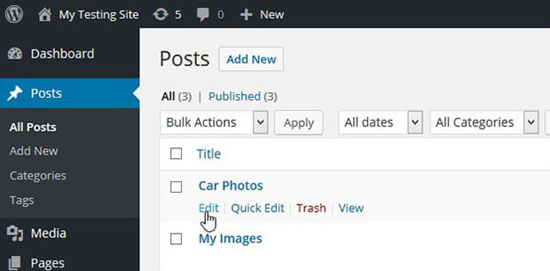
To get started formatting your WordPress posts, click on "Posts" > "Add New" or "Post" > "All Posts" and select the post you would like to edit.
The Importance of Formatting in Content Creation
Effective formatting in WordPress posts is crucial for enhancing readability and user engagement. Well-structured content, including headings, bullet points, and images, guides readers through the text, making it easier to digest information. Proper formatting also improves SEO, helping your posts rank higher in search results. Ultimately, it creates a more enjoyable experience, encouraging visitors to stay longer and return for more. Proper formatting is essential for several reasons:
- • Readability: Well-formatted posts are easier to read and understand, encouraging visitors to stay longer.
- • Engagement: Attractive posts with images and structured content are more engaging.
- • SEO Benefits: Search engines favor well-structured content, which can help improve your rankings.
- • Accessibility: Formatting helps all users, including those using screen readers, to navigate your content more effectively.
Accessing the WordPress Editor
Before you can format your posts, you need to access the WordPress editor. Here’s how:
- • Log into Your WordPress Admin Panel: Navigate to yourwebsite.com/wp-admin.
- • Create a New Post: Click on "Posts" in the left sidebar, then select "Add New." This will open the block editor (Gutenberg) where you can start formatting your content.
Key Formatting Elements
Key formatting elements in WordPress posts include headings, bullet points, images, and links. Using headings organizes content, while bullet points highlight key information. Images enhance visual appeal, and links improve navigation, boosting user engagement.
- • Text Formatting: Bold, italic, strikethrough, and underline.
- • Headings: H1, H2, h2, etc., which help organize content.
- • Lists: Bullet points or numbered lists for clarity.
- • Links: Hyperlinks that provide additional resources.
- • Images: Visuals that enhance understanding and engagement.
Text Formatting Options
In the first row of the toolbar, you have options to bold, italicize or strike-through text. To bold text, Just select the text you would like to format and click the bold button. You will see this text has been bolded.
- • Bold: Select the text and click the "B" icon or use Ctrl + B (Windows) or Cmd + B (Mac).
- • Italic: Select the text and click the "I" icon or use Ctrl + I (Windows) or Cmd + I (Mac).
- • Strikethrough: Highlight the text, click on the three dots in the formatting toolbar, and select strikethrough.
- • Underline: Similar to bold and italic, click the "U" icon to underline selected text.
Utilizing Headings and Subheadings
Headings and subheadings help organize your content, making it easier to navigate. They also enhance SEO.
- • Select Text: Highlight the text you want to convert into a heading.
- • Choose Heading Type: Click on the dropdown menu in the toolbar (usually defaults to "Paragraph") and select "Heading 2," "Heading 3," etc.
Adding Lists: Bullet and Numbered
Lists are an excellent way to present information clearly. You can use either bullet points or numbered lists based on your content.
- • Bullet List: Click the bullet icon in the toolbar, then start typing your items. Each new line will create another bullet point.
- • Numbered List: Click the numbered list icon in the toolbar, then start typing your items. Each new line will increment the number.
Incorporating Images and Media
Incorporating images and media in WordPress posts enhances engagement and visual appeal. High-quality images break up text, making content more inviting. Videos and infographics can further enrich the reader's experience, improving retention and sharing potential. Visual content can significantly enhance your posts. Here’s how to add images and media:
- • Click on the "+" Icon: Select the "Image" block from the menu.
- • Upload or Select Image: You can upload a new image or choose one from your media library.
- • Add Alt Text: Provide a descriptive alt text for better SEO and accessibility.
- • Adding Other Media: You can also add videos, audio, and galleries in a similar manner. Just select the appropriate block type (Video, Audio, Gallery) from the block menu.
Creating Links: Internal and External
Links are vital for enhancing user experience and SEO. You can create both internal and external links.
- • Highlight Text: Select the text you want to hyperlink.
- • Click the Link Icon: In the toolbar, click the link icon (looks like a chain).
- • Enter URL: Type or paste the URL and hit "Enter." For internal links, you can search for existing posts.
Using Block Quotes and Code Blocks
Block quotes and code blocks can help emphasize important information or showcase code snippets.
- • Adding a Block Quote: Click on the "+" Icon. Select the "Quote" block.
- • Enter Your Quote: Type or paste the quote in the block.
- • Attribution: You can add the author's name if applicable.
- • Adding a Code Block: Click on the "+" Icon. Select the "Code" block.
- • Enter Your Code: Paste your code snippet into the block.
Enhancing Readability with Spacing
Enhancing readability in WordPress posts through spacing is vital. Adequate line spacing, paragraph breaks, and margins prevent text from appearing cluttered. This allows readers to absorb information more easily, keeping them engaged and improving overall user experience. Tips for Managing Spacing:
- • Paragraph Spacing: Ensure there’s enough space between paragraphs to avoid clutter.
- • Line Spacing: Use a line height of at least 1.5 for better readability.
- • Margins: Keep adequate margins around images and blocks to prevent crowding.
Previewing and Publishing Your Post
Before you publish your post, always preview it to see how it looks to your audience.
- • Click the "Preview" Button: Located at the top right of the editor.
- • Review the Formatting: Check for any issues and make adjustments as needed.
- • Once you’re satisfied with the formatting:
- • Click "Publish": Located in the top right corner.
- • Confirm: Confirm that you want to publish your post.
WordPress Post Plugins
Custom Post Type UI
Admin UI for creating custom content types like post types and taxonomies. By WebDevStudios
Mass Pages/Posts Creator
Mass Pages/Posts Creator is a plugin which provide a simplest interface by which user can create multiple Pages/Posts at a time. By theDotstore
AI Post Generator
Generate blogs with GPT-3 AI and publish automatically. With this plugin you can easily transform your WordPress website with AI-powered content. By AutoWriter
PublishPress Future
Add an expiration date to posts. When your post is automatically unpublished, you can delete the post, change the status, or update the post categories. By PublishPress
Post Grid
Post Grid Combo is extremely easy to use for creating grid-layout and post-layout. Also, we're offering many small blocks with extensive flexibility. By PickPlugins
Advanced Post Block
Advanced Post Block is an useful plugin for the new WordPress Gutenberg block editor. It added many new features for displaying posts or custom posts. By bPlugins LLC
Bulk Edit Posts and Products in Spreadsheet
Modern Bulk Editor for Posts and Pages, create and edit hundreds of posts at once in a spreadsheet inside wp-admin. Search and quick edit. By WP Sheet Editor
Revive Old Posts
Automatically share your WordPress posts on Twitter, Facebook, LinkedIn. Get more visitors to your website and keep your content alive. By revive.social
 WordPress Resources and Links
Developers WordPress.org
Explore WordPress development with our comprehensive guides and resources. Learn to create themes, plugins, and optimize your site
Security WordPress.org
Discover WordPress Security best practices to protect your site. Learn about updates, secure hosting, and essential plugins to keep your content safe from threats
Themes WordPress.org
Browse thousands of free WordPress themes to customize your site’s look. Find the perfect design for your blog, business, or portfolio, and enhance your site’s functionality
Plugins WordPress.org
Unlock your site's potential with thousands of free WordPress plugins! Enhance functionality, improve performance, and add features easily. Explore, install, and elevate your website
Widgets WordPress.org
Discover WordPress widgets to customize your site’s layout easily! Add functionality and content in sidebars and footers without coding
Codex WordPress.org
Explore the WordPress Codex for comprehensive documentation and tutorials. Find guides on themes, plugins, and customization to help you master WordPress
Online Courses WordPress.org
Explore free WordPress courses designed for all skill levels! Learn about themes, plugins, and site management through structured lessons to boost your skills and create stunning websites
Community WordPress.org
Join the WordPress community! Collaborate with passionate contributors, share ideas, and help shape the future of WordPress. Get involved in events, discussions, and projects today
WordPress Resources RSHWeb.com
RSH Web Services complete WordPress resources. Our blog helps you find WordPress Resources like optimize your site, improve performance, and master all things WordPress
Best Practices for Formatting WordPress Posts
Effective WordPress post formatting helps readers, search engines, and AI answer engines understand your content. Use a clear structure, concise explanations, descriptive headings, optimized media, and meaningful links to improve readability, accessibility, Google SEO, Large Language Model visibility, Answer Engine Optimization, and Generative Engine Optimization.
- • Use one clear H1 for the post title, followed by descriptive H2 and H3 headings in a logical hierarchy. Headings should explain the subject of each section and naturally include relevant terms people may use when searching for information about formatting WordPress posts.
- • Begin with a concise introduction that defines the topic, explains why it matters, and tells readers what they will learn. A direct opening gives Google, AI assistants, and answer engines a clear summary of the page before they process the detailed instructions.
- • Keep paragraphs focused on one idea and use bullet or numbered lists for instructions, features, requirements, and comparisons. Clear content blocks make information easier to scan, quote, summarize, and reuse in search results and AI-generated answers.
- • Use descriptive internal-link anchor text instead of vague phrases such as “click here.” Connect related instructions to helpful resources about adding links in WordPress, adding and optimizing WordPress images, and organizing posts with WordPress categories and tags.
- • Write accurate, self-contained explanations that clearly identify WordPress features, editor options, and recommended actions. Avoid unsupported claims, vague wording, unnecessary repetition, and keyword stuffing because factual precision improves trust and makes content easier for LLMs and generative search systems to interpret.
- • Optimize every image with a descriptive filename, useful alternative text, appropriate dimensions, and a compressed web-friendly format. Images should support the surrounding text rather than serve only as decoration, improving accessibility, page performance, image search visibility, and semantic understanding.
- • Create a concise, keyword-focused SEO title and meta description that accurately represent the post. The title should communicate the primary topic, while the description should summarize the benefit and encourage qualified users to visit without exaggerating what the page provides.
- • Include direct answers near relevant headings. For example, immediately explain what a WordPress formatting feature does before providing detailed steps. This question-and-answer-friendly structure increases the likelihood that search engines and AI systems can extract useful passages for featured snippets, AI Overviews, and conversational answers.
- • Format quotations, code examples, warnings, and instructions with the correct WordPress blocks so their purpose is semantically clear. Do not use headings merely to enlarge text, and do not use bold formatting as a substitute for a properly organized heading structure.
- • Maintain accessibility by using meaningful link text, sufficient spacing, readable font sizes, descriptive image alt text, and a logical reading order. Additional tools are available in the guide to WordPress accessibility plugins.
- • Review the post on desktop and mobile before publishing. Check heading order, paragraph length, image placement, lists, links, spelling, factual accuracy, and loading speed. Performance and optimization tools are covered in the guide to WordPress plugins for faster SEO-optimized websites.
- • Update older posts when WordPress features, screenshots, recommendations, or external sources change. Displaying an accurate updated date and maintaining working links helps readers and search systems recognize that the information is actively reviewed.
- • Use an SEO plugin to manage titles, descriptions, canonical URLs, social-sharing information, XML sitemaps, and supported structured data. Compare commonly used options in the guide to SEO plugins for WordPress.
- • Use AI-generated content only as a starting point and verify every instruction, claim, example, and recommendation before publishing. Add original expertise, practical context, and human editing so the finished post provides genuine value. See AI content creation for websites and blogs for additional guidance.
 Frequently Asked Questions
Should I use the WordPress Block Editor or Classic Editor for formatting posts?
The Block Editor is generally the better choice for new WordPress posts because each paragraph, heading, image, list, quote, and media element is managed as a separate block. This provides more control over layouts and reusable content. The Classic Editor may remain useful for older websites or established workflows, but switching editors can sometimes affect existing formatting.
Why does my WordPress post formatting change after I publish it?
Published formatting may look different when a theme’s styles override settings shown inside the editor. Caching, custom CSS, page-builder settings, and plugin conflicts can also change spacing, fonts, headings, or image alignment. Preview the post before publishing, clear website and browser caches, and temporarily disable recently added plugins to identify the source of the problem. Learn more about installing and managing WordPress plugins.
How can I paste content into WordPress without adding unwanted formatting?
Paste content as plain text whenever it comes from Microsoft Word, Google Docs, an email, or another website. This prevents hidden fonts, spans, colors, and spacing rules from entering the editor. In the Block Editor, review the pasted content in individual blocks and reapply headings, lists, links, and emphasis with WordPress controls rather than preserving source formatting.
How many headings should a WordPress post contain?
There is no fixed number of headings a post must contain. Use enough descriptive headings to divide the article into logical sections without creating unnecessary breaks. Keep the post title as the main H1, use H2 headings for major topics, and place H3 headings beneath the appropriate H2 sections. This hierarchy helps readers and assistive technologies understand the content.
How should images be formatted inside a WordPress post?
Images should be sized for the content area, compressed to reduce loading time, and given descriptive alternative text when they communicate useful information. Check alignment on desktop and mobile screens, and avoid uploading files much larger than the displayed dimensions. The WordPress image guide explains uploading and placement, while the Media Library tutorial covers file management.
What is the best way to organize related WordPress posts?
Assign posts to a small number of broad categories and use tags only for specific recurring topics. Add descriptive links within the content when another page gives readers useful supporting information. Review the guides to WordPress categories and tags and adding links in WordPress to create a clear, connected content structure.
Do I need a paid plugin to format professional-looking WordPress posts?
No. WordPress includes blocks for headings, columns, lists, tables, quotes, buttons, images, galleries, audio, video, and other common content elements. A paid plugin or page builder may be worthwhile when you need specialized layouts, advanced design controls, or reusable templates. Before adding one, confirm that your theme and built-in blocks cannot provide the required result and review WordPress plugin considerations.
Summary
Formatting your WordPress posts effectively is vital for engaging your audience and enhancing readability. By using the techniques outlined in this guide, you can create visually appealing and organized content that attracts and retains readers.
Remember, the goal of formatting is not just aesthetics but also to improve the user experience. Take the time to experiment with different formatting options and see what works best for your audience. Happy blogging!
Also see: Using WordPress To Build A Website
Installation with cPanel and Softaculous. WordPress Themes. Changing Themes. Plugins, Creating New Pages. Appearance, Step by step guide, more
Overwhelmed With WordPress?
If WordPress is a bit much try our new AI Website builder and Website Importer
Author Bio: Mira Calden
A WordPress wizard with over eighteen years of experience designing, optimizing, and troubleshooting sites on the world’s favorite CMS WordPress....
Related WordPress Tutorials and How To Guides
Tweet Share Pin Email