
cPanel - Email - Global Email Filters
Uses the criteria that you specify to determine how to handle email messages. Emails can be discarded, redirected to another email address or sent to a folder.
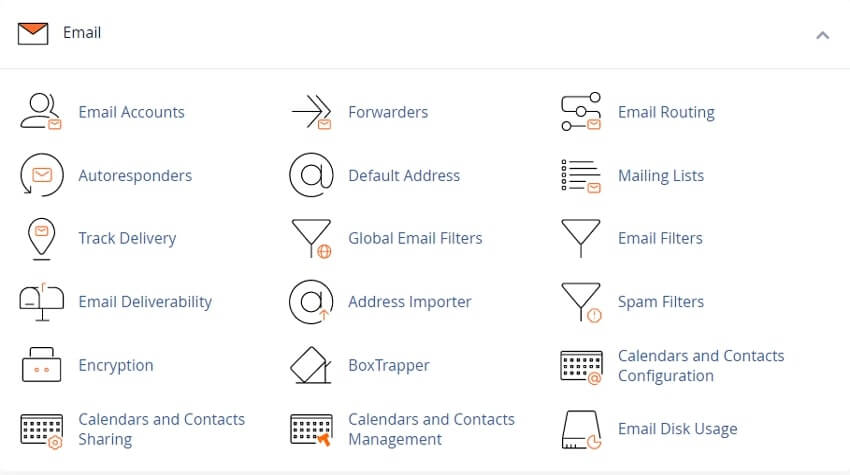
This cPanel feature allows you to configure how your website filters all the emails that your email accounts receive.
Note: We strongly recommend that you use multiple, simple filters instead of a single large filter. Exims mail server's transfer agent, handles many small rules more efficiently than a single large rule.
Global Email Filters will not process any email messages that are discarded before delivery.
The system may discard some email messages before delivery if you select the "Discard the email while your server processes it" by SMTP time with an error message setting in cPanel’s Default Address interface
cPanel » Home » Email » Default Address. interface.
Generally, the recipient does not receive the BCC field in an email’s header. For this reason, you cannot use the BCC field in a filter.
For more information about cPanel’s email filter rules and actions, read cPanel's How to Configure Mail Filters documentation.
Create a filter
To create a new filter, perform the following steps:
1) Click Create a New Filter.
2) Enter the filter’s name in the Filter Name text box.
3) Configure your filter’s rules and actions.
4) Click Create.
Create a wildcard redirect
A wildcard redirect will redirect all emails whose addresses match a regular expression (regex) pattern.
Important: Forwarders deliver copies of a forwarded email to both the original and the destination address, while redirects only deliver emails to the destination address.
For example, redirecting an email from sample-email@example.com to correct-sample-email@example.com will result in it only being available in the correct-sample-email@example.com inbox.
To create a wildcard redirect, perform the following steps:
1) Click Create a New Filter.
2) Enter the wildcard filter’s name in the Filter Name text box.
3) Select "From" - from the Rules menu to apply your new filter to the sending email address.
4) Enter your regex pattern in the Criteria text box.
Note: The regex pattern must have a .+ notation where wildcard characters are expected. For example, to forward test_user1@example.com and test_user2@example.com to the same address, set the regex pattern to test_user.+@example\.com.
A sending email address must have wildcard characters in the expected place to be caught by the wildcard filter. For example, a wildcard filter tracking the regex pattern test_user.+@example.com will catch test_user45@example.com and test_user_SHOSHANA@example.com, but will not catch test_user@example.com.
Current Filters
The Current Filters section lists all the account-level filters for your cPanel account.
Edit a filter
To edit an existing filter, perform the following steps:
1) Click Edit next to the appropriate filter name.
2) Make the desired changes to the filter.
3) Click Create.
Delete a filter
To delete a filter, perform the following steps:
1) Click Delete next to the appropriate filter name.
2) Click Delete Filter.
Test a filter
Important: To learn more about your filter’s rules and actions, read our How to Configure Mail Filters documentation.
To test your filter, perform the following steps:
1) Enter a test email message in the Filter Test text box. Include the characters, words, and conditions that you configured for your filter.
2) Click Test Filter. The Filter Trace Results interface will appear.
The Filter Trace Results interface
The Filter Trace Results interface will display results similar to the following:
2 Condition is false: not first_delivery and error_message
3 Condition is false: $message_body contains Keyword
4 Return-path copied from sender
5 Sender = username@hostname.example.com
6 Recipient = username@hostname.example.com
7 Testing Exim filter file "/home/example/etc/example.com/filtertest/filter"
8
9 Headers charset "UTF-8"
10 Filtering did not set up a significant delivery.
11 Normal delivery will occur.
The results contain the following information:
- • Each condition in the filter, and whether it returned a true or false result.
- • The Sender and the Recipient of the test message.
- • The filter file’s name.
- • The character set of the message.
- • Whether the filter triggers a change in delivery or if it will deliver normally.
- ◦ Filtering did not set up a significant delivery.
Normal delivery will occur. - The system will deliver the message to the mailbox. - ◦ Filtering set up at least one significant delivery or other action.
No other deliveries will occur. - The system will deliver the message to another mailbox or folder, or it will not deliver the message.
Elevate cPanel Support with Our Ready-to-Use WHMCS cPanel Knowledgebase add-on module
Helpful cPanel Tutorials and How-To Guides
cPanel manage every element of your web hosting account
Tweet Share Pin Email
Add Comment
This policy contains information about your privacy. By posting, you are declaring that you understand this policy:
- Your name, rating, website address, town, country, state and comment will be publicly displayed if entered.
- Aside from the data entered into these form fields, other stored data about your comment will include:
- Your IP address (not displayed)
- The time/date of your submission (displayed)
- Your email address will not be shared. It is collected for only two reasons:
- Administrative purposes, should a need to contact you arise.
- To inform you of new comments, should you subscribe to receive notifications.
- A cookie may be set on your computer. This is used to remember your inputs. It will expire by itself.
This policy is subject to change at any time and without notice.
These terms and conditions contain rules about posting comments. By submitting a comment, you agree with these rules:
- Although the administrator will attempt to moderate comments, not all comments can be moderated at all times.
- You acknowledge that all comments express the opinions of the original author and not those of the administrator.
- You will not post material which is knowingly false, obscene, hateful, threatening, harassing or invasive of privacy.
- The administrator has the right to edit, move or remove any comment for any reason and without notice.
Failure to comply with these rules may result in being banned from submitting further comments.
These terms and conditions are subject to change at any time and without notice.
 What is Website Hosting and How Does It Work
 The Best & Most Affordable Hosting Services For Small Businesses
 Opinions on those Best Hosting Reviews Website
 The Benefits & Advantages of Using Softaculous for Your Website
Comments