
cPanel - Security - IP Blocker
The IP Blocker feature allows you to block access to your hosting account for one or more IP Addresses or even fully qualified domain names. This is usually done to ban or block any undesirable sites and hosts from entering the server or node and causing harm to the network or individual computers.
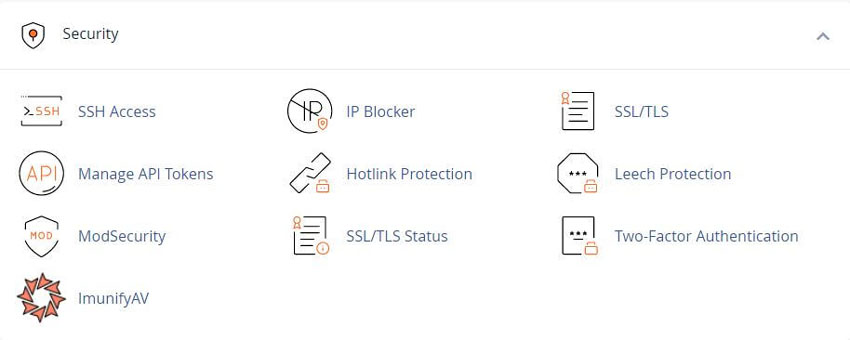
Blocking IP Addresses
How to block and unblock IP addresses from accessing your site using the cPanel IP Blocker
Although our Hosting packages already have a firewall installed to detect potentially malicious behavior and automatically blocks those IP addresses.
Sometimes you will only want to stop someone or stop their IP address from accessing your website, which is most often done using the .htaccess file.
cPanel also has an IP blocking feature to help create these rules for you.
How to Block an IP Address or Address Range
Login to your cPanel
Under section Security » IP Blocker
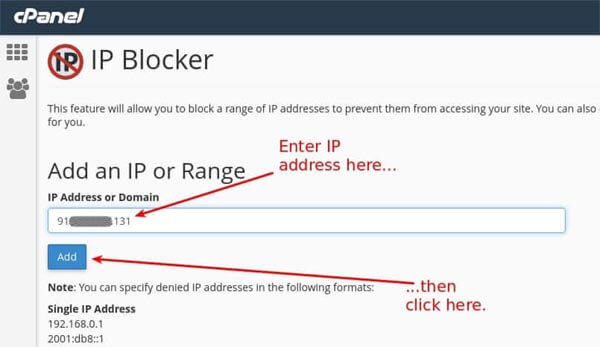
Next, enter the IP address or address range in the box and click "Add"
Enter the IP address or range in the IP Address or Domain text box. You can enter IP addresses in any of the following formats:
- • Single IP address (for example,
101.505.3.33) - • Range (for example,
101.505.3.3-10.5.3.40) - • Implied range (for example,
101.505.3.3-40) - • CIDR format (for example,
101.505.3.0/24)
- 0/24 is a representation of IPv4 addresses with the range of 0-255 - • Implied IP address (for example,
10.)
- If you enter10., the system blocks access to any IP address that begin with 10.
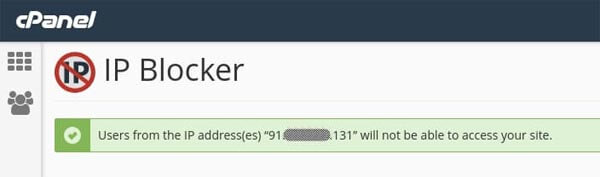
You should then see a confirmation screen like this:
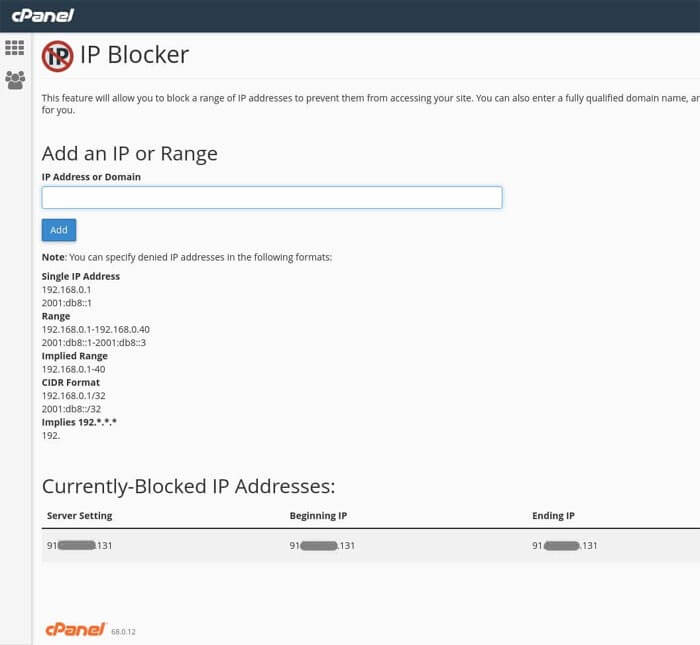
You should now see the newly-added IP or range in the Currently-Blocked list:
If desired, you can check your Websites ".htaccess" file and see that the block was added
How to Unblock an IP Address or Address Range
This only works if cPanel's IP Blocker is how the IP was blocked in the first place, Otherwise the unblocking will need to be done another way
For assistance on this, please do not hesitate to contact us
Log into cPanel and access the IP Blocker page as shown in the previous section
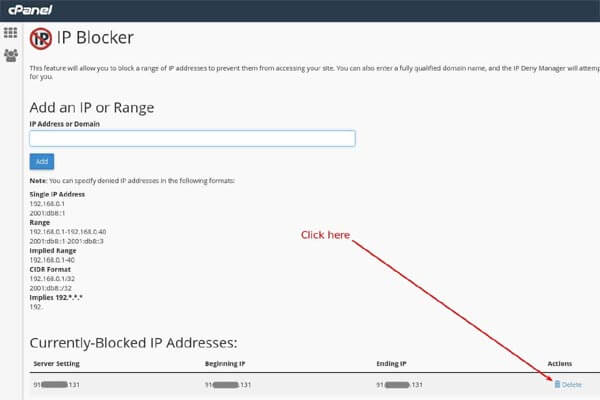
Look in the list for the IP address or address range you would like to unblock, and click the "Delete" button in that row:
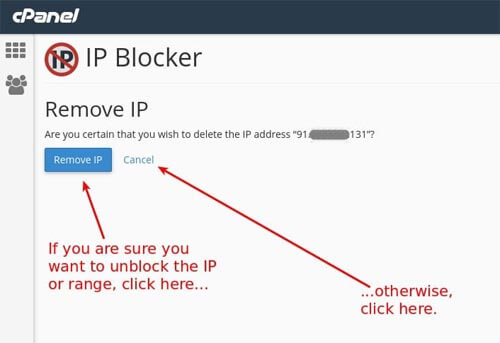
cPanel will ask you if you are sure. If you are sure you want to unblock the IP, click "Remove IP". Otherwise, click "Cancel":
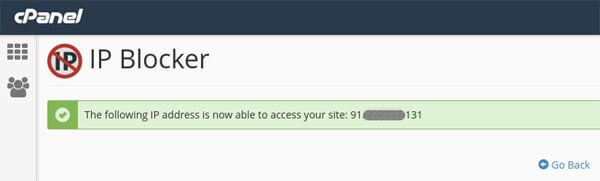
After unblocking the IP, you should see a confirmation screen
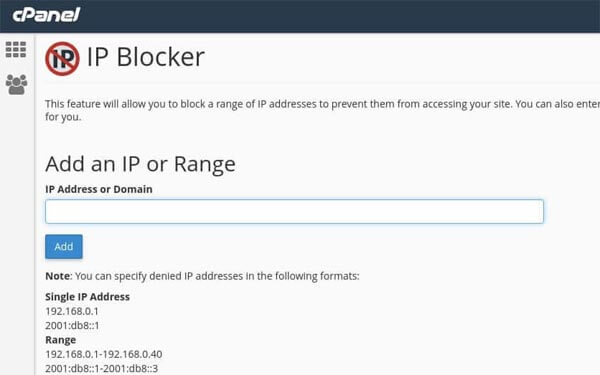
The IP address will no longer be listed in the "Currently-Blocked" list:
Related cPanel Tutorials and How To Guides
Wide range of key features crucial for website management
Tweet Share Pin Email
Add Comment
This policy contains information about your privacy. By posting, you are declaring that you understand this policy:
- Your name, rating, website address, town, country, state and comment will be publicly displayed if entered.
- Aside from the data entered into these form fields, other stored data about your comment will include:
- Your IP address (not displayed)
- The time/date of your submission (displayed)
- Your email address will not be shared. It is collected for only two reasons:
- Administrative purposes, should a need to contact you arise.
- To inform you of new comments, should you subscribe to receive notifications.
- A cookie may be set on your computer. This is used to remember your inputs. It will expire by itself.
This policy is subject to change at any time and without notice.
These terms and conditions contain rules about posting comments. By submitting a comment, you agree with these rules:
- Although the administrator will attempt to moderate comments, not all comments can be moderated at all times.
- You acknowledge that all comments express the opinions of the original author and not those of the administrator.
- You will not post material which is knowingly false, obscene, hateful, threatening, harassing or invasive of privacy.
- The administrator has the right to edit, move or remove any comment for any reason and without notice.
Failure to comply with these rules may result in being banned from submitting further comments.
These terms and conditions are subject to change at any time and without notice.
 Choosing the Right Hosting Provider
 How to Buy IP Addresses
 How Unchecked Fraud Affects WordPress
 AI Tool Directories
Comments