
cPanel - Domains - Subdomains
We deprecated this interface in cPanel & WHM version 100, and we removed this interface in version 106. Use the Domains interface to manage addon domains.
For Older cPanel interfaces
A subdomain is a domain that is a part of a larger domain name. A subdomain is also a subsection of your website that sometimes exists as a subdirectory of your public_html (document root) directory or your hosting account’s directory.
Subdomains work as if they are a completely separate website.
This feature in cPanel allows you to create, manage and delete Subdomains for your hosting account.
Subdomains use a prefix in conjunction with the domain name.
For example, if the registered domain name is rshweb.com, and the subdomain you want is: "images" the subdomain will be "images.rshweb.com".
You can use subdomains to create unique user accounts, or for almost anything your imagination can come up with.
Note: Visitors may not be able to view your subdomain immediately. Changes to DNS records may require two hours or more to reach all the Nameservers across the world.
Create a subdomain
Warning: Due to the order in which Apache processes its configuration file, wildcard subdomains may disrupt the functionality of service subdomains. We strongly recommend that you use wildcard subdomains only when absolutely necessary, or when you do not need to use a service type subdomain.
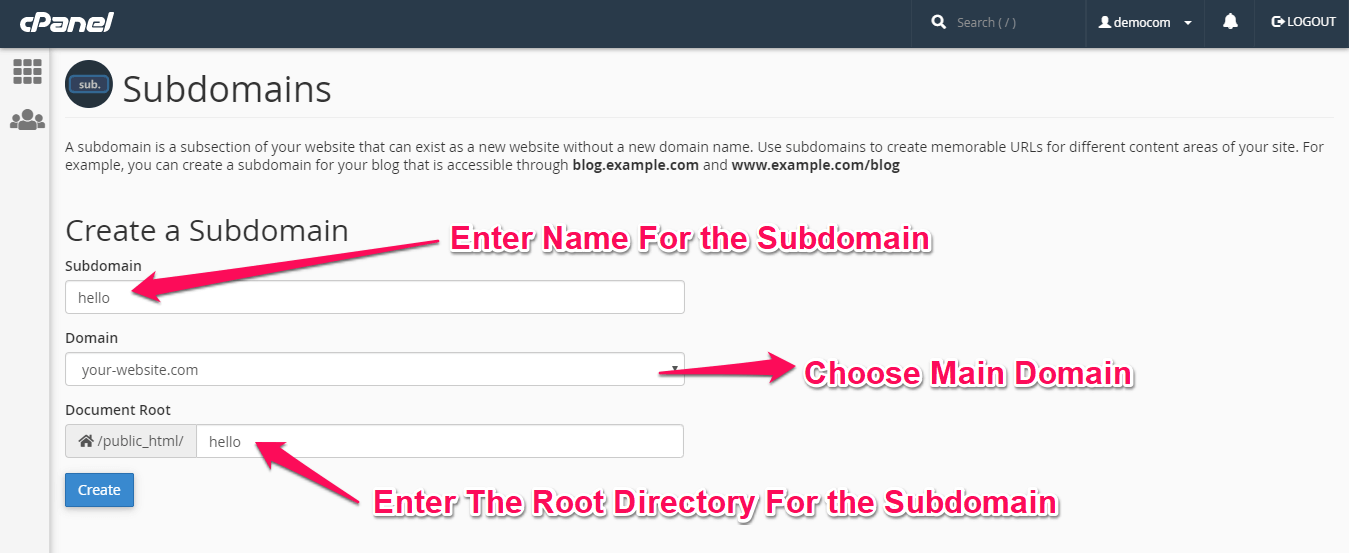
To create a subdomain, perform the following steps:
1) Enter the desired prefix in the Subdomain text box.
2) Select the desired main domain from the menu.
3) Enter the home directory for the subdomain in the Document Root text box.
Note: The house icon represents the cPanel account’s home directory.
The Document Root text box defines the new subdomain’s directory, relative to the cPanel account’s home directory.
For example, if you enter subdomain in the Directory text box and the cPanel account uses the /home/example home directory, the subdomain will exist in the /home/example/subdomain.example.com/ directory.
The system automatically populates this text box with the subdomain’s fully-qualified domain name (FQDN).
Click Create.
When you create an addon domain, parked domain, subdomain, or main domain, the system will attempt to automatically secure that domain with the best-available existing certificate. If no certificate exists, the system will generate a self-signed certificate to secure the new domain.
If AutoSSL is enabled for the account that owns the new domain, the system will add a request for an AutoSSL certificate to secure the new domain and install it when it becomes available.
To open the subdomain’s main directory with the File Manager interface
Click the link under Document Root that corresponds to that subdomain.
Search subdomains
To search existing subdomains, perform the following steps:
1) Enter the search criteria in the Search text box.
2) Click Go.
Modify a subdomain
Modify the document root for a subdomain
To modify the document root for a subdomain, perform the following steps:
1) Click the notepad icon that corresponds to the subdomain that you want to manage.
2) Enter the new file path that you want to use as the document root in the available text box.
3) Click Change.
Enable or disable subdomain redirection
Note: If you wish to redirect a particular URL within a subdomain, or if the URL includes a www. prefix, use cPanel’s Redirects interface.
To enable or disable redirection of a subdomain, perform the following steps:
1) Click the Manage Redirection link that corresponds to the subdomain that you wish to manage.
2) If you wish to redirect the subdomain, enter the link to which you want to redirect the subdomain in the available text box.
3) Click Save.
To disable the redirect, click Disable Redirection.
Remove a subdomain
To remove an existing subdomain, perform the following steps:
1) Click the Remove link that corresponds to the subdomain that you want to remove.
2) Click Yes to confirm that you want to remove the subdomain.
Listing Softaculous Apps Collection More than 30 scripts from Form Tools and chat to genealogy or finances and more
Related cPanel Tutorials and How To Guides
Over 75 different website hosting features available
Tweet Share Pin Email
Add Comment
This policy contains information about your privacy. By posting, you are declaring that you understand this policy:
- Your name, rating, website address, town, country, state and comment will be publicly displayed if entered.
- Aside from the data entered into these form fields, other stored data about your comment will include:
- Your IP address (not displayed)
- The time/date of your submission (displayed)
- Your email address will not be shared. It is collected for only two reasons:
- Administrative purposes, should a need to contact you arise.
- To inform you of new comments, should you subscribe to receive notifications.
- A cookie may be set on your computer. This is used to remember your inputs. It will expire by itself.
This policy is subject to change at any time and without notice.
These terms and conditions contain rules about posting comments. By submitting a comment, you agree with these rules:
- Although the administrator will attempt to moderate comments, not all comments can be moderated at all times.
- You acknowledge that all comments express the opinions of the original author and not those of the administrator.
- You will not post material which is knowingly false, obscene, hateful, threatening, harassing or invasive of privacy.
- The administrator has the right to edit, move or remove any comment for any reason and without notice.
Failure to comply with these rules may result in being banned from submitting further comments.
These terms and conditions are subject to change at any time and without notice.
 How Do I Get My Local Business Found Online
 The Best URL Structure for SEO
 26 Free or Low Cost Alternatives to Google Analytics GA4
 Common Social Media Marketing Mistakes You Need to Know
Comments