
cPanel - Data Bases - MySQL Database Wizard
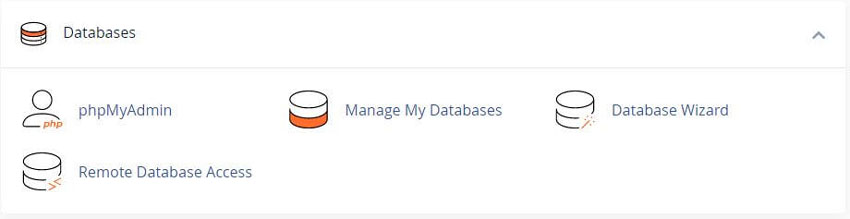
MySQL is a popular Open Source SQL Database management system. It helps to manage a large volume of data efficiently. Storing the data in tables, a group of unlimited tables can be created in a single database. This cPanel feature allows you to create and manage the existing MySQL databases in your hosting account.
There are two cPanel tools that allow creating MySQL Databases: MySQL Databases menu and this MySQL Database Wizard.
Setting Up a Database
To set up a database, perform the following steps:
1) In the New Database text box, enter a name for the database and click Next Step. The system limits the database name to 64 characters. However, due to the method that cPanel & WHM uses to store MySQL database names, each underscore character requires two characters of that limit. Therefore, if your hosting provider enabled database prefixing, the underscore character in the database prefix will use two characters of the 64-character database name limit. Each other character in the database prefix will only use one character of the limit. You may name a database with any ASCII characters except the following:
/ " ' `
2) In the Username text box, enter a name for the user who you wish to allow to manage the database. You may only enter alphanumeric characters.
Important: To learn more about database username limits, see below: Your Database Types:
3) Enter and confirm the new password in the appropriate text boxes. Some web hosts require a minimum password strength. The system evaluates the password that you enter on a scale of 100 points. 0 indicates a weak password, while 100 indicates a very secure password. A green password Strength meter indicates that the password is equal to or greater than the required password strength. You may click Password Generator to generate a strong password. For more information, read our Password Blogs
4) Click Create User.
5) Select the check boxes that correspond to the privileges that you want to grant the user, or select "ALL PRIVILEGES". For more information about user privileges, read the MySQL documentation.
6) Click Next Step.
The system displays a message that states that you successfully set up the database and user account.
Additional options
After you complete the database setup process, select one of the following options:
- • Add another database - Click to return to the beginning of the MySQL Database Wizard interface to add more databases.
- • Add another MySQL Databases User - Click to open the MySQL Databases interface to create additional user accounts and assign them to a database.
- • Return to Home - Click to return to the cPanel Home interface.
Database Types
MySQL 5.6
Limits the database username to 16 characters. The system includes the database prefix (the first eight characters of the cPanel account’s username plus an underscore for a total of nine characters) in the character count for the username.
For example:
- • A MySQL database with the db_ prefix allows usernames that contain up to 13 characters.
- • A MySQL database with the example_ prefix allows usernames that contain up to eight characters.
MySQL 5.7
Limits the database username to 32 characters. The system includes the database prefix (the first 16 characters of the cPanel account’s username plus an underscore for a total of 17 characters) in the character count for the username.
For example:
- • A MySQL database with the db_ prefix allows usernames that contain up to 29 characters.
- • A MySQL database with the example_ prefix allows usernames that contain up to 24 characters.
MariaDB
Limits the database username to 47 characters. The system includes the database prefix (all of the cPanel account’s username and an underscore character) in the character count for the username.
For example:
- • A MariaDB database with the db_ prefix allows usernames that contain up to 44 characters.
- • A MariaDB database with the example_ prefix allows usernames that contain up to 39 characters.
Related cPanel Tutorials and How To Guides
Over 75 different website hosting features available
Tweet Share Pin Email
Add Comment
This policy contains information about your privacy. By posting, you are declaring that you understand this policy:
- Your name, rating, website address, town, country, state and comment will be publicly displayed if entered.
- Aside from the data entered into these form fields, other stored data about your comment will include:
- Your IP address (not displayed)
- The time/date of your submission (displayed)
- Your email address will not be shared. It is collected for only two reasons:
- Administrative purposes, should a need to contact you arise.
- To inform you of new comments, should you subscribe to receive notifications.
- A cookie may be set on your computer. This is used to remember your inputs. It will expire by itself.
This policy is subject to change at any time and without notice.
These terms and conditions contain rules about posting comments. By submitting a comment, you agree with these rules:
- Although the administrator will attempt to moderate comments, not all comments can be moderated at all times.
- You acknowledge that all comments express the opinions of the original author and not those of the administrator.
- You will not post material which is knowingly false, obscene, hateful, threatening, harassing or invasive of privacy.
- The administrator has the right to edit, move or remove any comment for any reason and without notice.
Failure to comply with these rules may result in being banned from submitting further comments.
These terms and conditions are subject to change at any time and without notice.
 Domain Names for Financial Companies
 Difference Between A Domain Transfer And DNS Update
 What Is The Meaning Of .COM In A Domain Name
 Should I Register Multiple Domain Names For One Website
Comments