
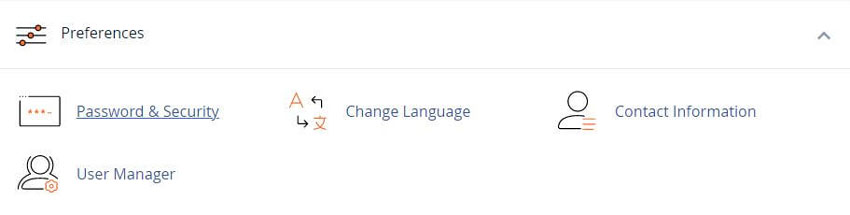
cPanel - Preferences - Password and Security
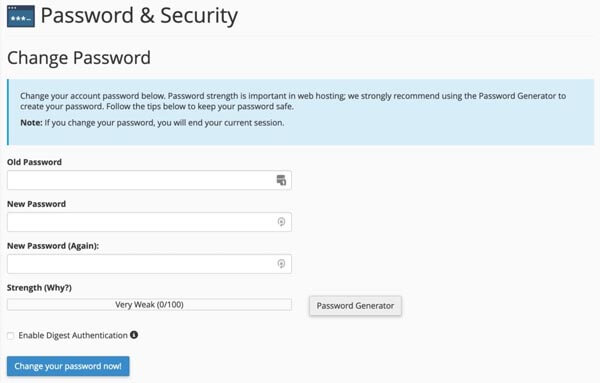
This cPanel interface will allow you to create or change your password in your web hosting cPanel account as well as offering a Password Generator
To change your password, enter the desired information and click Change your password now!, or use the Password Generator feature.
Note: You must enable Digest Authentication if you use Windows Vista, Windows 7, Windows 8, or Windows 10 and you access Web Disk over a clear text, unencrypted connection.
Create a strong password
To ensure your account’s security, make certain to create a strong password:
Use a different password for each of your important accounts (for example, your Email Accounts).
Use a combination of letters, numbers, and symbols in your password.
See our blogs on Passwords
How do I Create a Strong Password
Creative But Strong Passwords You Will Remember
Password Generator
This feature generates secure passwords, which are difficult for malicious users to guess. You can use the Password Generator feature in any interface that displays it.
When you click Password Generator, a new window appears that contains a generated password in a text box. Click Generate Password until it generates a satisfactory password.
Configure security requirements
To set the security requirements of the new password, perform the following steps:
1) Click Advanced Options.
2) Enter the desired length of the password in the Length text box.
3) Select whether to include uppercase letters, lowercase letters, numbers, or symbols.
4) Copy the password in a safe place and select the I have copied this password in a safe place checkbox at the bottom of the window.
5) Click Use Password to use the generated password. To reject the password and close the Password Generator window, click Cancel.
External Authentication
Your system administrator may allow users to access cPanel with external authentication credentials (for example, cPanelID, WHMCS, Google® Accounts, Facebook®, or your hosting provider’s portal).
This functionality allows you to reduce the number of passwords that you need to remember.
The External Authentication tab lists the credentials for OpenID Connect-compliant identity providers that you can use to log in to cPanel and Webmail.
You can also use this section of the interface to link new credentials or unlink existing credentials.
Important: This section only appears if the server administrator has configured at least one external authentication module.
This interface only displays the external authentication identity providers that your hosting provider selects in WHM’s Manage External Authentications interface (WHM >> Home >> Security Center >> Manage External Authentications).
Note: Most identity providers allow you to register for an account as part of the authentication process.
Your cPanelID uses the same username and password that you use for the cPanel Store, the cPanel Tickets system, and the Manage2 billing system. If you do not already use a cPanelID, you can register for one during the authentication process.
You can link one or more external accounts to one or more cPanel accounts, WHM accounts, or Webmail accounts.
If you link to an external account through an identity provider that uses two-factor authentication, you must also authenticate through that identity provider in addition to any two-factor authentication that you configure on your server.
Link your account
To link your cPanel or Webmail account to credentials at an external authentication identity provider, perform the following steps:
1) Click the External Authentication tab.
2) Click Link Account next to the name of the appropriate identity provider. A new login interface will appear for that identity provider.
3) Enter the requested username, password, and other credentials for that identity provider. If you are currently logged in to that identity provider, the interface will skip this step.
4) Confirm that you wish to allow the provider to link to your cPanel or Webmail account.
5) Confirm that you wish to link your cPanel account to the provider’s authentication credentials.
Unlink your account
To unlink external authentication identity provider credentials from your account, click Unlink Account next to the appropriate account. A new interface will appear that asks you to confirm that you wish to unlink your account.
YouTube Video - How to Change Your Password
Related cPanel Tutorials and How To Guides
Wide range of key features crucial for website management
Tweet Share Pin Email
Add Comment
This policy contains information about your privacy. By posting, you are declaring that you understand this policy:
- Your name, rating, website address, town, country, state and comment will be publicly displayed if entered.
- Aside from the data entered into these form fields, other stored data about your comment will include:
- Your IP address (not displayed)
- The time/date of your submission (displayed)
- Your email address will not be shared. It is collected for only two reasons:
- Administrative purposes, should a need to contact you arise.
- To inform you of new comments, should you subscribe to receive notifications.
- A cookie may be set on your computer. This is used to remember your inputs. It will expire by itself.
This policy is subject to change at any time and without notice.
These terms and conditions contain rules about posting comments. By submitting a comment, you agree with these rules:
- Although the administrator will attempt to moderate comments, not all comments can be moderated at all times.
- You acknowledge that all comments express the opinions of the original author and not those of the administrator.
- You will not post material which is knowingly false, obscene, hateful, threatening, harassing or invasive of privacy.
- The administrator has the right to edit, move or remove any comment for any reason and without notice.
Failure to comply with these rules may result in being banned from submitting further comments.
These terms and conditions are subject to change at any time and without notice.
 What is Java - Do I Need it?
 What Is Joomla: With Features, Templates, and Extensions
 The Best PHP Resources and Tools
 Protecting Your Devices from Malware and Phishing Attacks
Comments