
cPanel / Softaculous Tutorials & Guides
cPanel - Software - Softaculous Apps Installer
This tutorial index introduces the Softaculous Apps Installer in cPanel and points you to the supplied guides for installing applications, managing existing installations, creating backups, testing changes, and finding application information.
A software auto-installer that is used to install web applications and PHP classes with one-click. It is the most widely used script installer in the web hosting industry.
Where to Start
New to Softaculous? Begin with the Softaculous Enduser panel guide, then use the task guide that matches your goal. Install a new application with the script installation guide. For an existing site, review recognized installations before using import, backup, clone, or WordPress management tools.
Suggested Learning Order
- Open Softaculous in cPanel and learn the layout.
- Install a supported script on the correct domain and directory.
- Use backups before consequential changes.
- Use cloning or staging when the application supports it.
Softaculous Application Installer
This is an automatic script installer that is integrated into cPanel that simplifies the installation and configuration of hundreds of scripts.
The installation of major scripts such as WordPress, Joomla, AbanteCart, PrestaShop, Drupal, Open Real Estate, and over 350 more can be accomplished with very little effort
Softaculous is tightly integrated with cPanel and you can access 350+ of the most popular PHP, JavaScript, Perl applications. Softaculous also takes care of the complete life-cycle of the application from Installing to backups as well as auto updating, restoring, script ratings, user reviews and online demo's
You no longer need to manually install applications. You can now install these scripts and apps with just a few clicks of your mouse.
Try the Softaculous Demo
Check out the specifications, read reviews and much more on each application available via the Softaculous Auto Installer.
Location of Softaculous
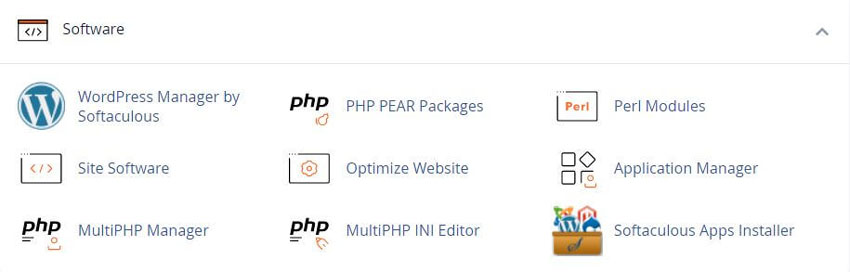
You can find the Softaculous Apps Installer link in the "Software" section of the cPanel Main Page.
You can also find a dedicated section of the Softaculous Apps Installer which displays the most popular applications and the application category in the front panel.
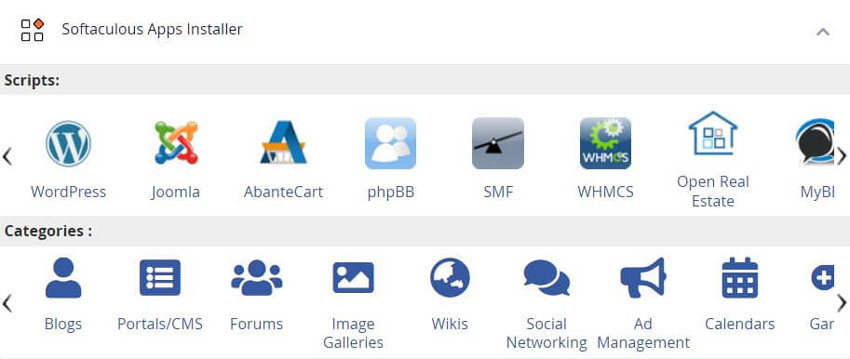
When you will click on Softaculous Apps Installer in the Software section, it will take you to the App Installer interface.
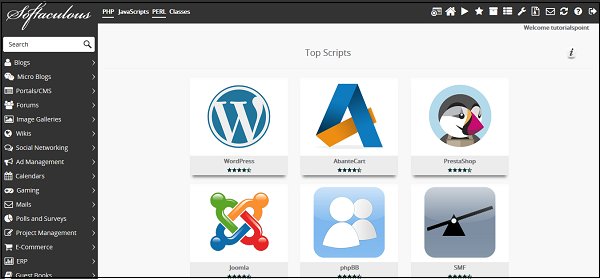
You can install, modify any installation, and create, as well as Manage the Backups.
Install Application using Softaculous Apps Installer
To install an application from the Softaculous Apps Installer, click on any of the categories on the left or search from the search box. There, you can select the application you wish to install.
Click Install and follow the instructions to install the application to your website.
Create Backup of any Application
You can easily create a backup of your application using the Softaculous Apps Installer to restore it to your account later. To create the backup of your application, you will need to go to the list of all installation's section of your Softaculous Apps Installer. Click on the icon at the top of the navigation bar to open All Installations.
In All Installations, you will find the list of all applications, which are installed by the Softaculous Apps Installer.
Click on the Backup icon to create an automatic backup of the whole application installation. This backup will include all the files, database, and configuration of the application. You can always restore the application by going into Backup and Restore interface of Softaculous Apps Installer, which can be opened by clicking on Backup and Restore icon from the top navigation menu.
How easy it is to use the Auto Install
- Log into your cPanel control panel
- Click the Softaculous icon
- Select the Application you want to install
- Select where you want it to be installed
- Select your username and password
- Click "Install" That's it
Before You Begin
Start with access to your hosting account and cPanel. Available applications, backup tools, and management options can vary by server configuration and administrator permissions.
Frequently Asked Questions
What access do I need?
You generally need access to the hosting control panel and the Softaculous Enduser panel. Start with the Softaculous Enduser panel guide. If a control is missing, check the account permissions and server policy before assuming the interface is malfunctioning.
Why is the option not visible?
Softaculous shows tools according to the script, installation state, server configuration, and administrator permissions. Some features are limited to supported applications or may be disabled by the host. Confirm the script in the All Installations list and consult the current Softaculous documentation before trying an unrelated workaround.
How can I confirm the task completed?
Review the success message, task status, or updated installation record supplied by Softaculous. Then test the relevant result directly, such as opening the site, checking the administration page, or confirming the changed setting. Background jobs can be checked in the Softaculous task list.
What should I do after an error?
Record the exact error, operation, installation, and time. Check the task list, destination path, storage, credentials, and permissions that apply to the operation. Avoid repeating a destructive action until you know whether the first attempt finished. Restore from a known copy with the restore a backup guide when needed.
Can a cPanel user perform every action?
No. Access depends on the hosting plan, server policy, Softaculous permissions, and the application’s own user roles. Some options are available only to administrators, while others are limited to a particular script. Related tasks are listed in the Softaculous tutorial index.
Do I need a backup first?
Create a current backup before a task that changes files, database content, domains, themes, plugins, settings, or installation records. A simple viewing task usually does not require one. Use the Softaculous backup guide. A Softaculous installation backup is not automatically a full account backup.
Where can I learn more?
Use the official Softaculous Enduser Documentation linked on this page for current menu names and feature availability. Install a script with the Installing A Script guide. For WordPress behavior, use the WordPress tutorial index.
Can RSH Web Services perform the task for me?
The tutorial explains a customer-managed Softaculous workflow. Whether assistance is available depends on the service and support arrangement associated with the hosting account. Use Contact Us before sharing credentials or requesting a change, and identify the exact domain, installation, and operation that needs attention.
Related Softaculous Tutorials and How To Guides
Wide range of key features for website management
Listing Softaculous Apps Collection More than 380 scripts from Form Tools and chat to genealogy or finances and more
See our WHMCS cPanel Knowledgebase add-on module for Hosting Companies
Covering cPanel, WordPress, FTP and Softaculous
Most Used Softaculous Scripts
Related Softaculous Tutorials and How To Guides
Wide range of key features for website management
Tweet Share Pin Email
Add Comment
This policy contains information about your privacy. By posting, you are declaring that you understand this policy:
- Your name, rating, website address, town, country, state and comment will be publicly displayed if entered.
- Aside from the data entered into these form fields, other stored data about your comment will include:
- Your IP address (not displayed)
- The time/date of your submission (displayed)
- Your email address will not be shared. It is collected for only two reasons:
- Administrative purposes, should a need to contact you arise.
- To inform you of new comments, should you subscribe to receive notifications.
- A cookie may be set on your computer. This is used to remember your inputs. It will expire by itself.
This policy is subject to change at any time and without notice.
These terms and conditions contain rules about posting comments. By submitting a comment, you agree with these rules:
- Although the administrator will attempt to moderate comments, not all comments can be moderated at all times.
- You acknowledge that all comments express the opinions of the original author and not those of the administrator.
- You will not post material which is knowingly false, obscene, hateful, threatening, harassing or invasive of privacy.
- The administrator has the right to edit, move or remove any comment for any reason and without notice.
Failure to comply with these rules may result in being banned from submitting further comments.
These terms and conditions are subject to change at any time and without notice.
 Consumer Resources for Seniors from the Federal Trade Commission
 Which Bitcoin trading software is best
 Windows 10 Tips, Tricks and ShortCut Keys
 mac OS Tips, Tricks, Tweaks and Hacks
Comments