
cPanel - Security - SSH Access
Also known as Secure Shell or Secure Socket Shell, is a network protocol that gives users, particularly system administrators, a secure way to access a computer over an unsecured network. .
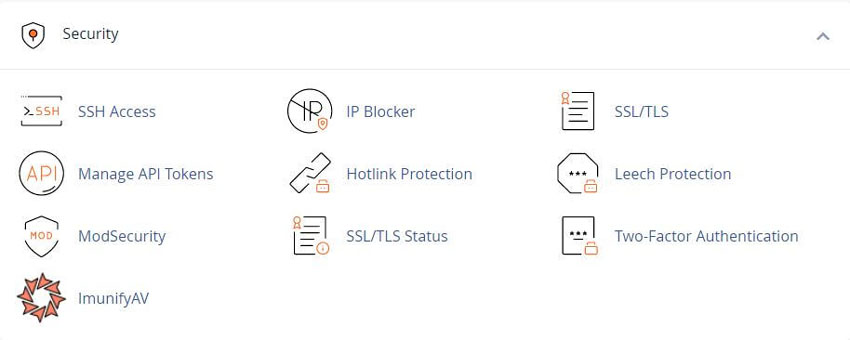
Many modern operating systems, such as macOS and Linux distributions, include SSH.
If you use Microsoft Windows® to connect to your server, you must use an SSH client, such as PuTTY, to log in to your server.
Many Unix-based operating systems include standardized commands. For a list of standardized Unix-based (POSIX) commands, see the GNU Coreutils documentation.
Note: Not all hosting providers allow shell access.
To access your cPanel server from the command line
To use PuTTY to connect to your server via SSH
To log in to a server via SSH with PuTTY and a public key
To log in to your server with a password via SSH using macOS
Manage SSH keys
This section of cPanel’s SSH Access allows you to create, import, manage, and remove SSH keys. The system will use these keys when you confirm that a specific computer has the right to access your website’s information with SSH.
Generate a New Key
Use this section of the interface to create new SSH key pairs, which include a public key and a private key.
To generate a new SSH key pair, perform the following steps:
- 1) Click Manage SSH Keys.
- 2) Click Generate a New Key.
- 3) To use a custom key name, enter the key name in the Key Name (This value defaults to id_rsa): text box.
- 4) Enter and confirm the new password in the appropriate text boxes.
Note: This step is optional if your hosting provider sets the SSH Keys setting to 0 in WHM’s Password
Strength Configuration interface.
The system evaluates the password that you enter on a scale of 100 points. 0 indicates a weak password, while 100 indicates a very secure password.
Some web hosts require a minimum password strength. A green password Strength meter indicates that the password is equal to or greater than the required password strength.
Click Password Generator to generate a strong password. For more information, read our Password and Security documentation.
- 5) Select the desired key type.
◦ DSA keys provide quicker key generation and signing times.
◦ RSA keys provide quicker verification times. - 6) Select the desired key size.
- 7) Click Generate Key. The interface will display the saved location of the key.
Important: For the new SSH key to function, you must authorize the SSH key. For more information, read the Manage your keys section.
Import Key
To import an existing SSH key, perform the following steps:
- 1) Click Manage SSH Keys.
- 2) Click Import Key.
- 3) To use a custom key name, enter the key name in the Choose a name for this key (defaults to id_dsa) text box.
- 4) Paste the public and private keys into the appropriate text boxes.
- 5) Click Import.
Manage your keys
The Public Keys and Private Keys tables display the following information about your existing keys:
- • Name - The key’s name. Public and private keys use the same key name.
- • Authorization Status - whether or not you authorized the key.
- • Actions - You can perform the following actions:
- • Delete Key - Click to delete the key, and then click Yes to confirm that you wish to delete the key.
- • View/Download - Click to view or download the key. To download the key, save the contents of the Public SSH Key text box to your computer.
- • Manage - Click to manage authorization for the key. A new interface will appear. Click Authorize to authorize the key, or Deauthorize to revoke authorization for the key.
After you deauthorize a key, that key’s users cannot log in with the associated private key.
Listing Softaculous Apps Collection More than 30 scripts from Form Tools and chat to genealogy or finances and more
YouTube Video - cPanel Tutorials - SSH Access
Related cPanel Tutorials and How To Guides
Manage, tweak, and increase the security and performance
Tweet Share Pin Email
Add Comment
This policy contains information about your privacy. By posting, you are declaring that you understand this policy:
- Your name, rating, website address, town, country, state and comment will be publicly displayed if entered.
- Aside from the data entered into these form fields, other stored data about your comment will include:
- Your IP address (not displayed)
- The time/date of your submission (displayed)
- Your email address will not be shared. It is collected for only two reasons:
- Administrative purposes, should a need to contact you arise.
- To inform you of new comments, should you subscribe to receive notifications.
- A cookie may be set on your computer. This is used to remember your inputs. It will expire by itself.
This policy is subject to change at any time and without notice.
These terms and conditions contain rules about posting comments. By submitting a comment, you agree with these rules:
- Although the administrator will attempt to moderate comments, not all comments can be moderated at all times.
- You acknowledge that all comments express the opinions of the original author and not those of the administrator.
- You will not post material which is knowingly false, obscene, hateful, threatening, harassing or invasive of privacy.
- The administrator has the right to edit, move or remove any comment for any reason and without notice.
Failure to comply with these rules may result in being banned from submitting further comments.
These terms and conditions are subject to change at any time and without notice.
 What Is MySQL - Definition and Resources
 Low-Code Platforms for Next-Gen Web Apps
 The Best Javascript Resources and Tools
 The Best Python Resources and Tools
Comments